
Ⅰ. Overview
Learn the concepts needed for Android malware analysis. Explore how to perform code analysis when decompressing an apk file, focusing on the structure of AndroidManifest.xml. Through ADB exercises, connect to an Android device and briefly learn about the directory structure on Linux.
Ⅱ. Conceptualizing Android Malware Analysis
When decomposing Android application (APK) files, such as the 'jadx-gui' program, it is important to understand the structure. This is done to find vulnerabilities through code analysis. Let's take a quick look at the structure of an APK file.
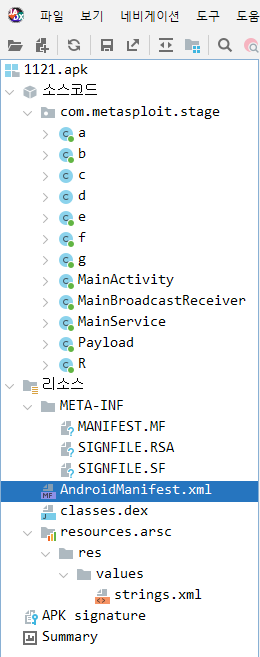
Sample with the jadx-gui program The structure when decompressing the apk fileHave you seen this before? If you have ever developed in Java, you will be familiar with it. Since Android is based on Java, Android applications are also OOP (Object Oriented Programming)It has a Java Class structure typical of object-oriented programming. While it does not exactly represent the code that the developer wrote, it is sufficient for code analysis. 'com.metasploit.stage' represents the entire package of the application, and within it, classes a through g perform separate functions. MainActivity, MainBroadcastReceiver, MainServiceIt is performing the role of an Android app component, as discussed in a previous post. Of course, it is likely that the actual role of such a class would not be clearly indicated by its name. During development, a clear class name would have been used, but in practice, everyone involved in the development knows that code analysis is possible through decompilation, so In the commercialization (app deployment) phase, we will hide it for security purposes.
Resource directorythere are static data such as text, images, etc. that the application uses META-INF, AndroidManifest.xml, Classes.dex, Resources.arscMETA-INF is a certificate containing the public key for the app signature. AndroidManifest.xmlThe apk file contains package information and information about the components of the authorized app (such as Activity, BroadcastReceiver, etc.). The Classes.dex file is a bytecode-optimized version of the above source code, organized by class. Finally, the Resources.arsc file contains compiled resources (such as strings and designs).
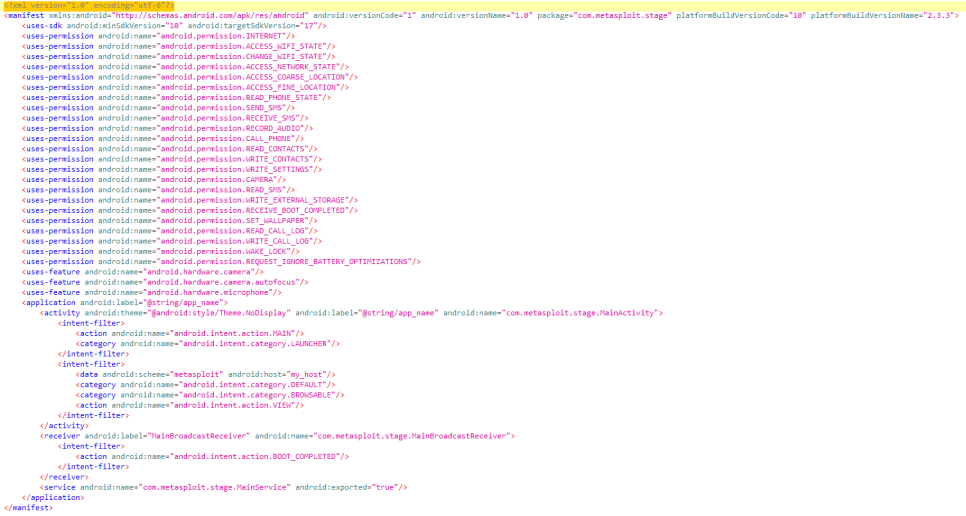
Now let’s look at some of the things we need to analyze the code. First, the above image is AndroidManifest.xml. It contains a list of components that make up the Android application, as well as permission-related information and hardware-related information. The reason we open this file first is that we can get a general idea of what the app does. Of course, this doesn’t tell us everything. Some apps include permission-related information that they don’t actually use, so that we can tell whether the current app is being used on a real Android phone or not. This is generally done to uses-permission As we add items, let's see You can find out by turning Bluetooth on and off, checking network connectivity, or using the accelerometer, among other things, when the app is loading. This is why not only malicious code apps, but also regular user apps, sometimes configure uses-permission for the same reason.
※ All Android applications must have unique package names, because the Linux-based Android operating system manages processes using these package names and PID values. In the screenshot above, the package name is 'com.metasploit.stage', which usually starts with 'com.~', but it doesn't have to.
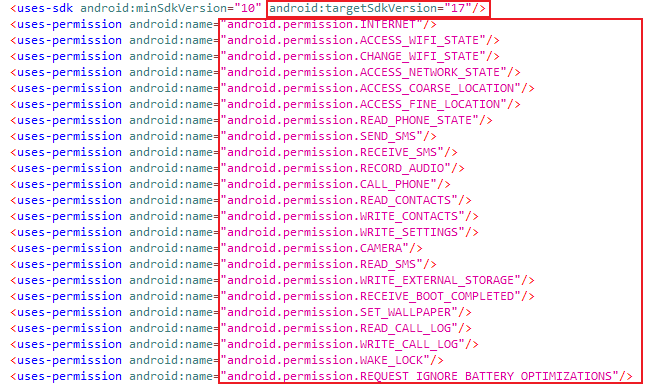
First, let’s briefly talk about android:targetSdkVersion. This is the minimum version required to run the application. Just as we check the Java version when running a Jar file, we need to meet the above version requirements for running and executing the app. Looking at the uses-permission section, even if we don’t know exactly what it means, we can easily translate it to English and understand that the app is requesting certain system permissions. In other words, it’s a list of permissions that the app needs to use for essential data, hardware, and so on. This section must be predefined so that the Android operating system can verify and actually use the corresponding hardware or data.
※ You have probably encountered permission requests when installing or using an application. This is a way for developers to shift responsibility onto the user, but you can just ignore it...
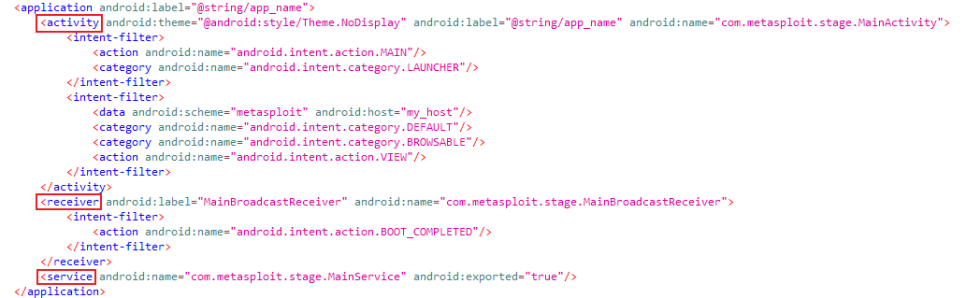
the activity, receiver, and service parts of the application Android ComponentsThe details of how it is structured are still a bit beyond my current understanding, but as I mentioned in a previous post, an intent refers to an entry point and is an example of android.intent.category.LAUNCHERThe icon that is displayed to the user to enter the app is what we mean by a component. To summarize, a component is a activityis the part of the user interface (UI) that is visible to the user broadcast receiveris for internal event handling servicesThe background part is not included here, but the content provider is for the part that provides shared data. So, as an additional example, the receiver part android.intent.action.BOOT_COMPLETEDallows the phone to start the app after booting is complete
※ Android has many entry points. You can launch an app by pressing its icon, or enter an app such as Coupang or KakaoTalk after clicking on an alert message, playing music in the background, or clicking on an internet ad. So, although it is not a random entry point, sometimes we start with an activity when analyzing the code.
Ⅲ. ADB Practice
ADB (Android Debug Bridge)Think of it as a tool for debugging on Android. It allows you to perform a variety of tasks, such as examining the internal structure of the device or helping you identify malicious code apps among multiple applications on Windows.
SDK Platform Tools Release Notes | Android Developer | Android Developers
You can download it here,
Android Debug Bridge (adb) | Android Developer | Android Developers
Detailed information on usage can be found here.
To give you a simple example of a command,
Commands | Description |
adb devices | Check the list of devices and emulators connected to the PC, and disconnect using “adb kill-server” |
adb install [apkfilename.apk] | Installing an apk file on the device |
adb uninstall [package name] | Delete packages installed on the device |
adb push [pc path] [android path] | Copy files stored on the PC to the device |
adb pull [android path] | Copy files stored on the device to a PC |
adb shell | Run the connected device shell |
adb logcat | Monitoring of connected device logs |
adb connect 127.0.0.1:62001 | Connect adb to port 62001 on 127.0.0.1 |
adb shell pm list packages | View a list of all packages installed on the connected device |
adb shell pm list permissions | List of permissions for the application on the connected device |
Since practicing through ADB requires an Android device, I installed and launched Nox Player.
Nox App Player - Enjoy mobile games on your PC safely and without lag.
And finally, I registered the file path of the downloaded ADB as an environment variable, making it easy to use from any path.
The method is set after entering the system
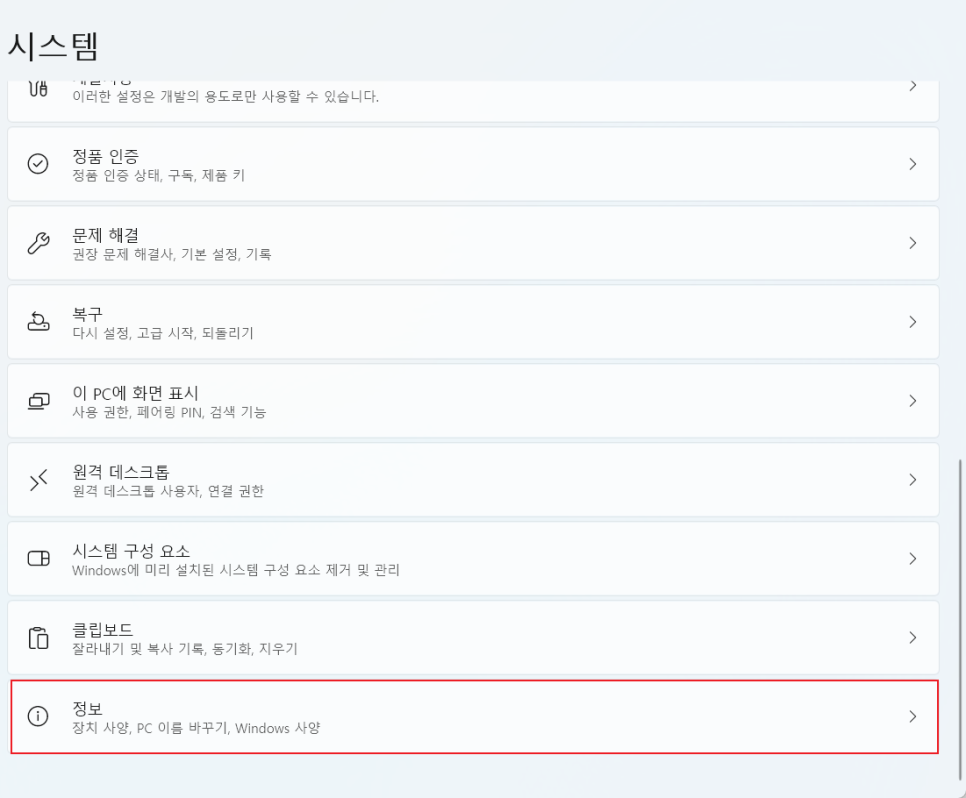
You'll enter the information. When you get to the middle, you'll see the advanced system settings. Just tap on that.
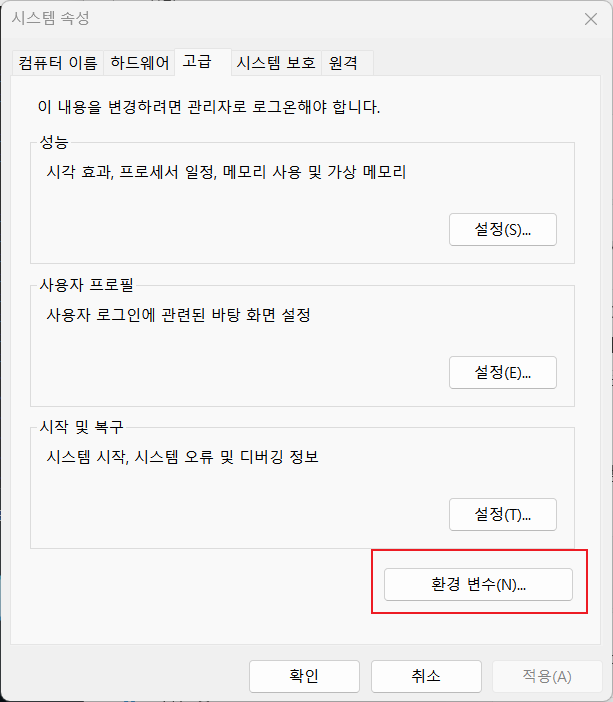
There's an environment variable. Let's go in there.
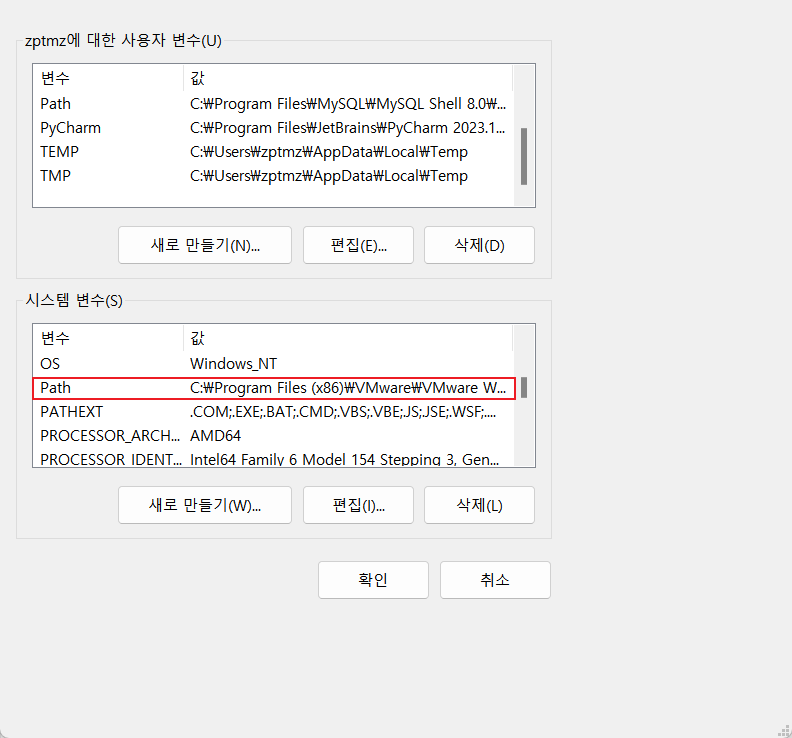
Just click on the Path, click Create, and then paste the ADB file path.
Now let's try to connect to the device using the ADB command. (And before that, let's make sure Nox is running.)
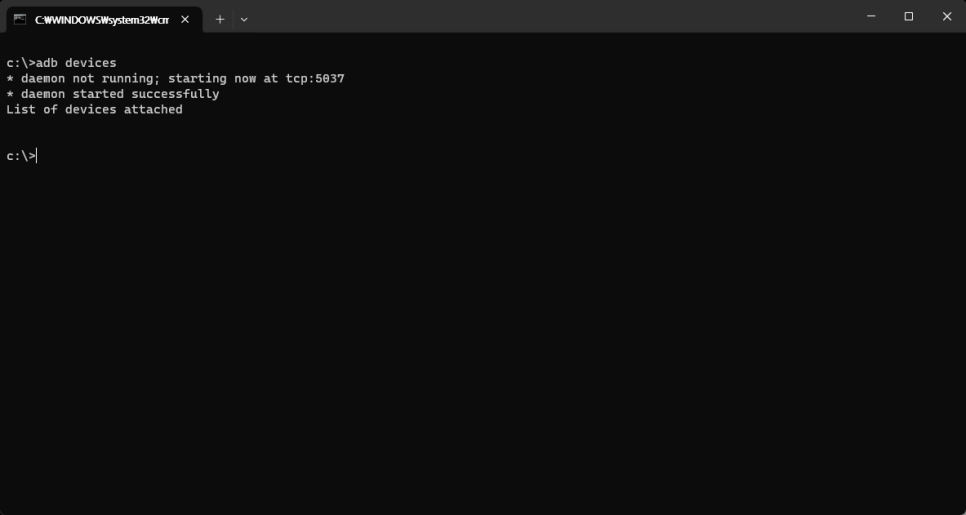
If you type adb devices, no devices will appear. So now let's find the Nox that is running.
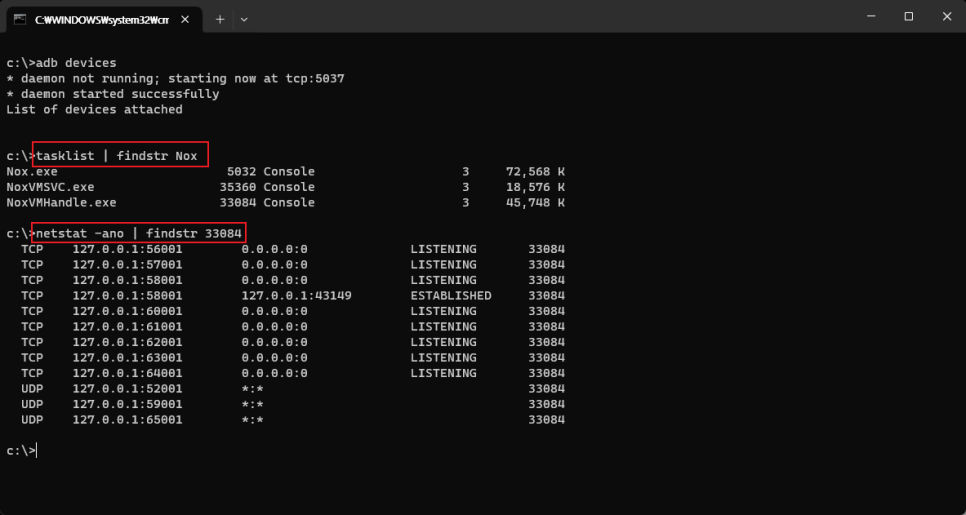
tasklist shows a list of currently running processes, and findstr outputs only the results corresponding to a specific string. netstat -ano lists all open server IPs and ports. For Nox, it connects to port 62001.
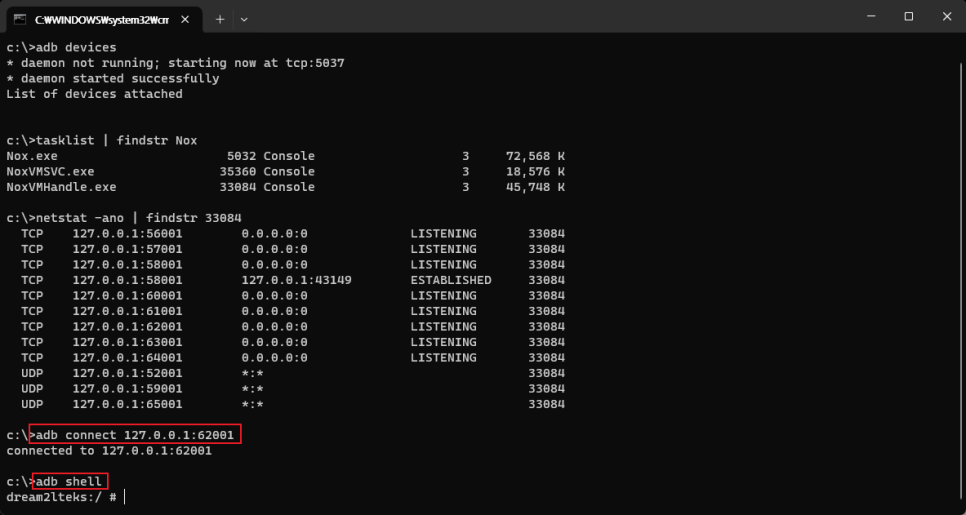
Finally, if the connection is successful, you can see the Linux shell open with adb shell. If you want to delete the connected device, you can exit the shell with exit and then initialize the connection with adb kill-server.
※ Directories you should know about /data/app, /data/data, /system/vendor/lib, /proc, /storage/emulated/0There are /data, which is the application sharing directory and contains general data and apk executable files; /system, which is the system configuration file section; /proc, which is the process-related directory; and /storage, which refers to the SD card. For personal user information, it is stored in the user account directory, just as the /home/username directory is created in Linux. This is to prevent other regular users from accessing it.