
Ⅰ. Overview
Learn about the structure of a ZIP file. Explore how the header is structured and how the information corresponding to each header is categorized. A DISK can be divided into a main memory and an auxiliary memory as a storage device. Briefly examine the operation and structure of a DISK (MBR, VBR), and understand how it works in a real computer. Also, learn the differences between HDDs and SSDs, differences in file reading, writing, deletion, and copying related to speed. In the lab, we will analyze MBR and VBR using HxD (this lab will be covered in a later post) by performing image dumping using FTK Imager.
Ⅱ. ZIP structure
I recommend this blog that explains the structure of ZIP files in detail.
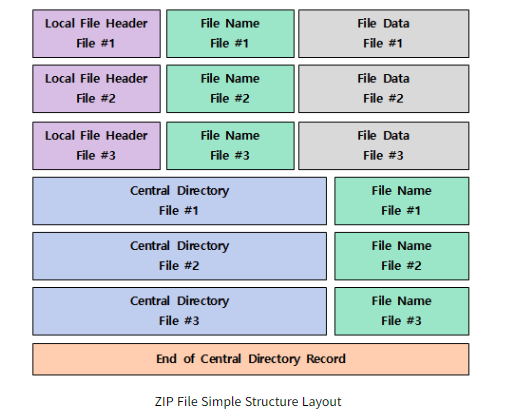
The structure of a ZIP file is simple. Basically, Local File Header, Central Directory File Headerexists for each compressed file, and at the end End of Central Directory Record HeaderIt ends there. Let's look at the components of each header now.
Local File Header
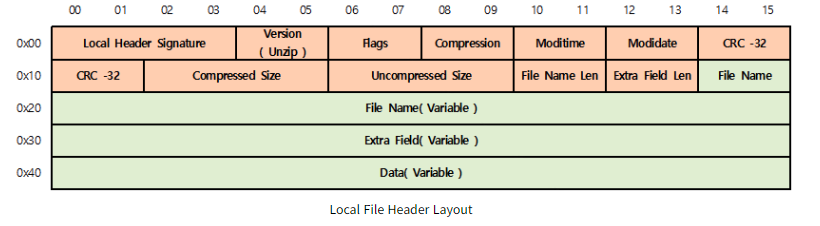
The local file header is structured as follows, and each detailed part is described in the above blog. The signature, version, and flags in orange are fixed in bytes, but the file name, extra field, and data in green are variable, as in the case of a notepad, where the title and content can be written in different lengths.
Central Directory File Header
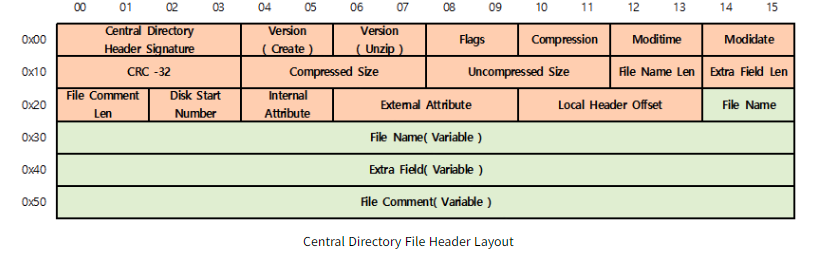
The Central Directory File Header is structured in this way, displaying more extended data information than the Local File Header. It includes more detailed information, such as compression size, file description, version, and modification date.
End of Central Directory Header
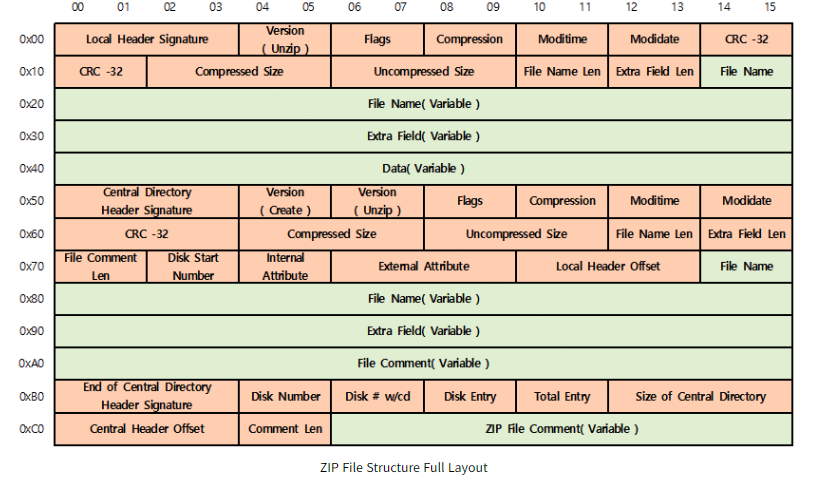
The Local File Header or Central Directory File Header may be multiple instances, depending on the number of compressed files, but as the name suggests, this End of Central Directory Header contains overall information about the compressed ZIP file. One header at the endSo, if you look at the last 0xB0 and 0xC0 parts, you will find information such as the number and size of the entire Central Directory, the description of the ZIP file, and so on.
※ With actual practice ZIP I wrote an automated code to load the file from Python into a binary and extract the properties of each header and header, not because it's a great code, but because I think it's good to actually try it to learn the structure. With the hexadecimal values that have actually been extracted, you can change the modification date, change the title, change the content, and so on. However, it is a manipulation that can be done for fun.
※ For reference, this compressed file structure is used in almost all common file formats. You may have seen the hwpx extension for Korean files or the xlsx extension for Excel files. These are compressed file formats.
Ⅲ. DISK
DiskThe types are Main memoryAnd Auxiliary memory deviceThere is. Previously, data was sequentialThen, it was really difficult to go back to find the middle data. There was also the non-permanent feature that modern disks have. 'Random Access Method of Accounting Control' We improved this using techniques. The main memory device is typically RAM (Random Access Memory)known as volatile dataI explained RAM in more detail in a previous post. However, flash memory (such as USB) is not volatile. Speed is one of the factors that greatly affects a computer's performance. Secondary memory devices allow us to keep the programs we install and the documents we create, even if we upgrade our computers frequently. Non-permanent storage devicesUnlike main memory (RAM) Non-volatile dataIt stores data, but it is slow and the secondary memory device is commonly referred to as a disk.
There is also a thing called a disc, which is different from a disk. Audio CD, CD-ROM (Read Only Memory), DVD-ROM (Read Only Memory), DVD-RAM, and so on It refers to optical media. Some are read-only and can be removed from the computer at any time, while others are storage discs that can store content (such as music and video) or be rewritten multiple times. It may be easier to understand if you think of a CD. Just as VMware needed an interface for the LAN card when dealing with the network, it also needs an interface for the disc. IDE (Integrated Drive Electronics) Or ATA (Advanced Technology Attachment)But in the sense of parallel PATA (Parallel Advanced Technology Attachment)It is called
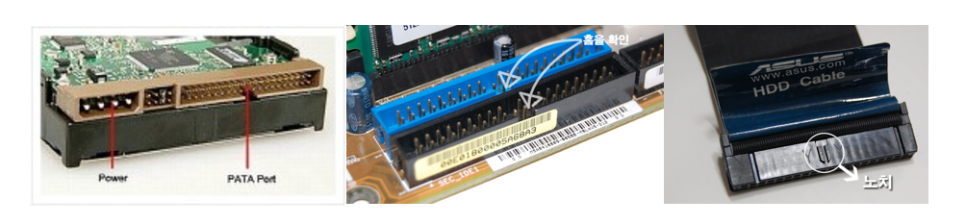
PATA mode
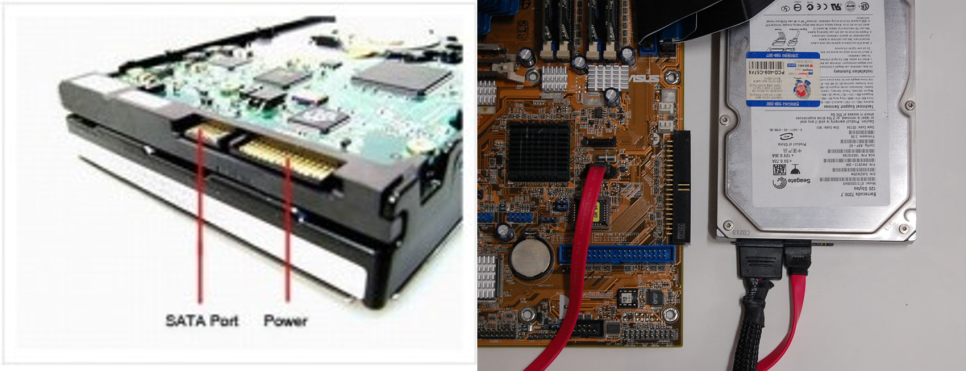
SATA mode
PATA, which was widely used in the past, has now been improved to match the speed of modern IDEs. SATA (Serial Advanced Technology Attachment)SATA1 has a speed of 150MB per second, while SATA2 has a speed of 300MB per second. After SATA2, it became possible to connect multiple hard disks to a single port using a hub, just like USB. USB can be used without turning off the PC and connecting devices. Hot plug Features have also been added.
※ SCSI (Small Computer System Interface): There is also a disk interface used in the banking industry. It is significantly faster than a typical hard disk, at 320 MB per second. It is used for servers or workstations (high-performance computers with similar performance to mini-computers, capable of high-speed computing and faster processing speeds) and requires a separate expansion card. SAS (Serial Attached SCSI - for large computers such as servers)It is evolving and being replaced.
If you look at the process when the DISK is booted, it typically looks like this.

You may have heard a 'beep' sound when you turn on your computer. This is POST (Power on Self Test)It is the process of reading hardware devices and checking whether power is being supplied properly. After the overall hardware check is complete, we see BIOS If you've ever formatted a computer, you've probably changed the settings here. The BIOS can handle hardware settings and make some Storage (ROM)When formatting, you can choose the boot disk or overclock.
Next MBR (Master Boot Record)It is extremely important that this is executed correctly. If it is corrupted, the computer will not boot, because the BIOS reads the boot sector of the MBR when it reads a bootable device. If you dump the disk, which is a total of 512 bytes, you will first see that it is located in sector 0. Main partition, secondary partition, and a total of 4 partitionsEach partition contains 16 bytes of information, ranging from 446 bytes per partition to 510 bytes, minus the last two bytes.
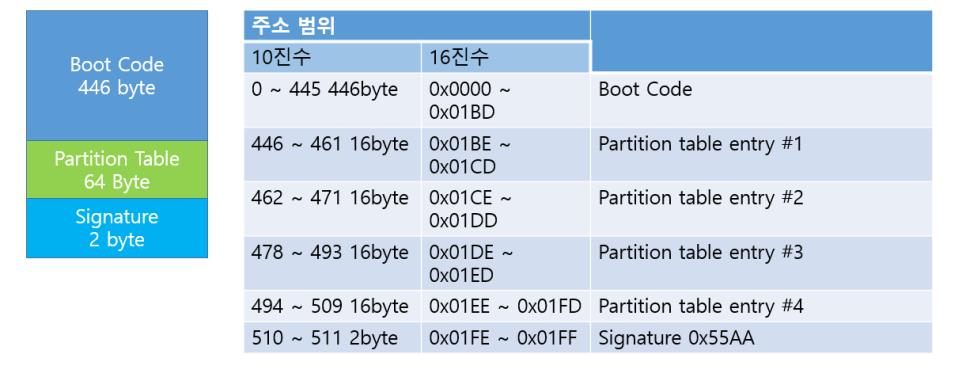
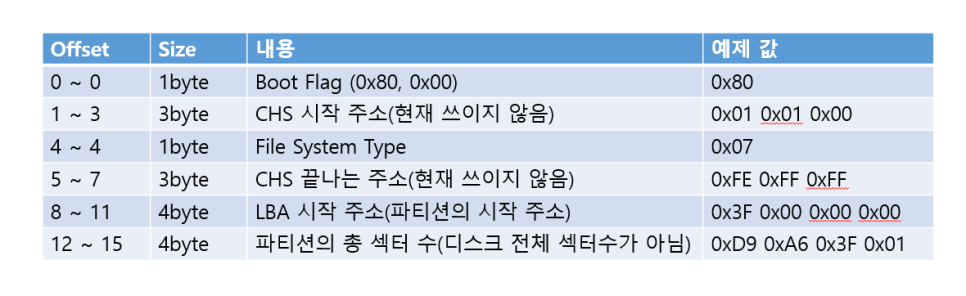
Partition Table Details
※ Here SectorIt is a good idea to look at the disk structure. The disk is divided into multiple sectors, which store and manage data. The last 4 bytes of information refer to the total number of sectors in the individual partition, rather than the entire disk. ClusterThat's because the larger the cluster, the faster it is. It's naturally faster to read data from a cluster at once than to read it from a sector at a time. However, the larger the cluster, the more wasted space there is that is not being used.
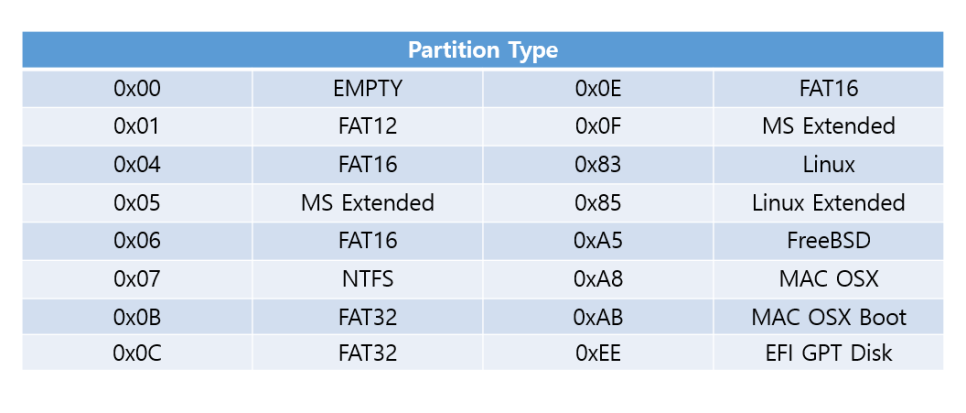
This may be difficult to understand in text, so the image above will make it easier to understand. The MBR is up to 446 bytes. Boot Codewith that, and then Partition TableThere are four of them, from 446 bytes to 510 bytes. The last one is 2 bytes. SignatureA partition recorded on the MBR is a list of primary partitions that can be booted. A disk can have one partition or multiple partitions. When you first install a disk, you will need to perform partition operations. You can also see this when formatting. You may have divided the C drive and the D drive for backup purposes, which is what partitioning does. Of course, both drives can be individual disks.
※ If the MBR is corrupted, it cannot boot and there is no backup, making recovery extremely difficult.
Before HDD (Hard Disk Drive)I used it a lot, but nowadays SSD (Solid State Drive)will be used. HDDs use the MBR method described above, while SSDs GPT (GUID Partition Table) The GPT method is used. The biggest difference between GPT and MBR is that GPT does not have any size or number limitations, whereas MBR had a limit of four partitions and a limit of 2TB. In other words, GPT offers greater convenience and advantages in partition management.
※ Logical diskAnd Physical disk There is a concept here: a logical disk refers to a partition disk, and a physical disk refers to an actual HDD or SDD hardware disk.
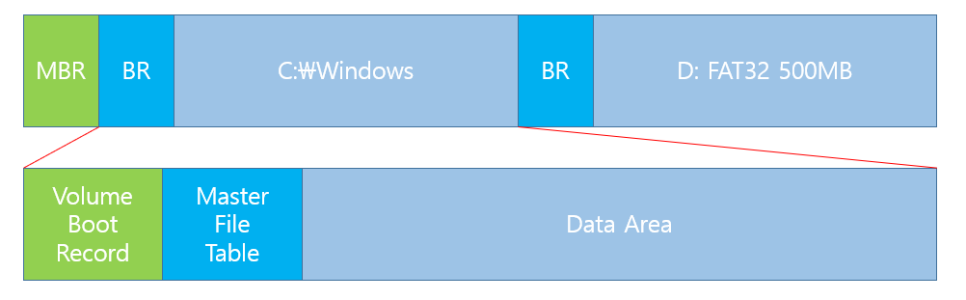
After the MBR or GPT finishes working on the partition, the file system is initialized, as shown in the image above. VBR (Volume Boot Record)C Master File Tablereads and writes files. It manages where data is stored on each partition, and the actual data is stored as shown in the image above. Data AreaIt is stored and managed by the Master File Table. Since there is a backup, restoration is easy, but it can be difficult if the system does not boot. You will see this VBR when you are using Windows and are asked to choose a formatting method. FAT, NTFS FAT is this file system. FAT had a maximum file size of 4 GB and was limited to 32 bits in length, but NTFS overcomes these limitations of FAT, eliminating the 4 GB limit and improving overall performance, making it the most widely used file system.
※ Of course, there is also an improved version of FAT, called FAT32. Additionally, FAT32 has a reserved area (such as the boot sector, file system basic information, etc.) following the VBR, and records the allocation of files to FAT1 and FAT2 (mirrored - same structure). Then, there is the MFT (table containing file information).
NTFS (Next Technology File System)And FAT (File Allocation Table)The Master File Table is responsible for reading, writing, storing, and deleting files. Usually, when a file is created, MBRAccess it to get information about the partition VBR (NTFS, FAT)Access it from VBR. MFT (Master File Table)It calculates the available space in the Data Area, finds a new file to store, stores information about the available space in the Data Area in the MFT, and then actually stores the file. When copying or moving a file, there is a noticeable difference in speed.
Copy | Move | |
Same partition | slowness | Speed |
Other partitions | slowness | slowness |
※ For NTFS, if the file is small, the file contents are not stored in the Data Area, but are written entirely to the MFT.
The reason for this difference is that
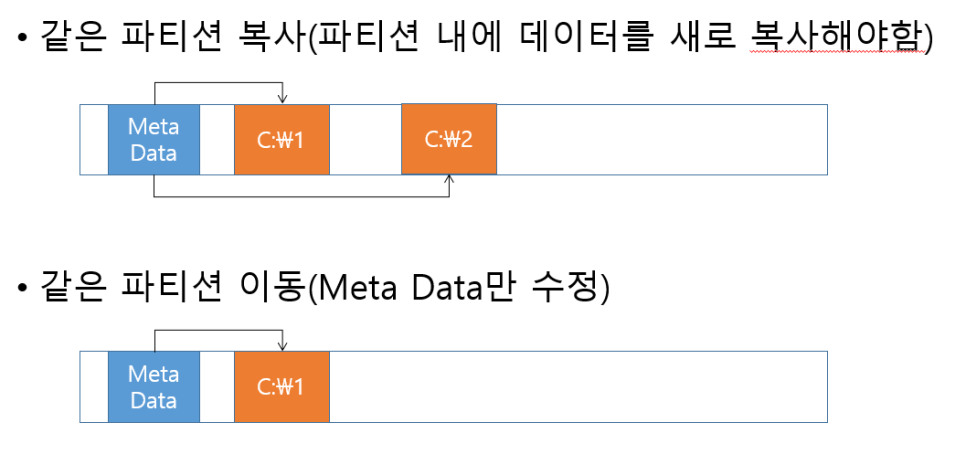
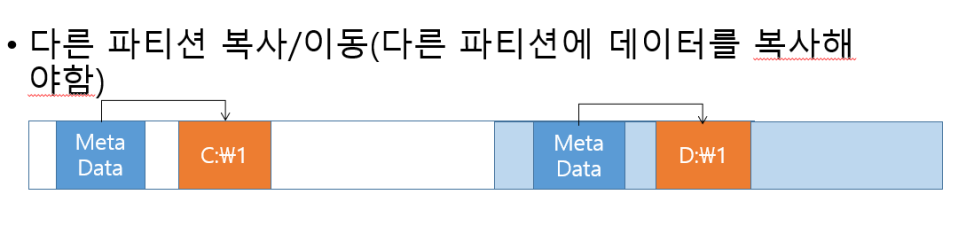
The image above should make this easier to understand. Within the same partitionIn the case of copying, the Data Area must be updated with the new file, and the MFT must be updated with information such as the file name, date, size, and storage location. However, in the case of moving, only the information in the MFT needs to be modified, making it faster. Other partitionsIn the case of copying, since the MFT must also be modified and the file information must be rewritten to the Data Area, as with copying within the same partition, it is slow. Moving is also slow, but it is generally faster than copying. Deleteis
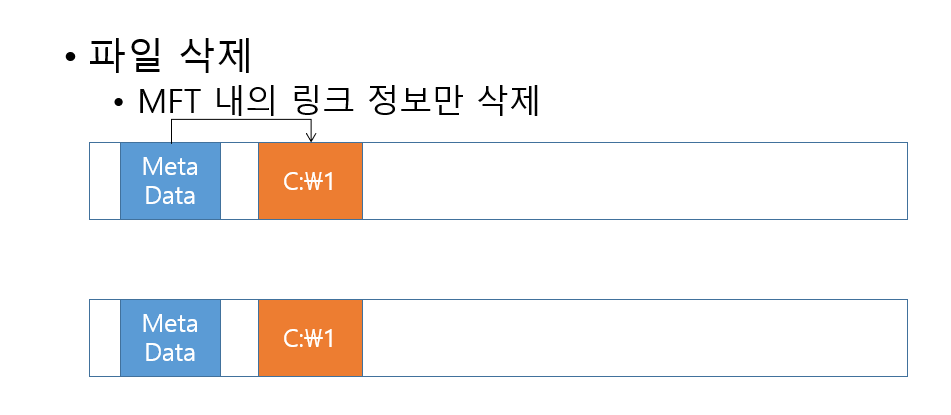
This is the MTF Delete only the link information in the Data AreaSo it's very fast. What happens if we overwrite it?
Overwriting is not a common method for recovery because it can become corrupted. Modifying the data area of an existing file can break the header information in the MFT, meaning that the information in the MFT is replaced by the information in the overwritten data. Therefore, the information in the old file is no longer available. Here is where the difference between HDDs and SSDs comes in. HDDs can be overwritten, but SSDs usually cannot. Three techniques This is because, in the past, the fact that it could not be restored by overwriting it was used to intentionally overwrite data that the HDD wanted to hide, making it difficult to restore. However, RandomThe Trim technique, which works by Manage file data that is not used regularlyIn fact, when overwriting, it is enough to modify it to 0 and 1, but in that case, the existing data is considered deleted. Since Trim finds the link at the moment of deletion (when the link between the MFT and the data is broken) and creates a state of nonexistence, and because it is also very fast, it is difficult to overwrite.
※ Previously, XP had Garbage Collection, but Windows 7 introduced Trim.
※ When copying files, the creation time may be slower than the modification time. This is because the files are transferred over the Internet or via USB, i.e. they are moved between separate disks rather than between partitions. In the case of files received over the Internet, the name is 'Zone.Identifier' (as shown when viewed with dir in CMD). For additional information, USB is recognized immediately upon connection via plug and play, and drivers are installed.
Another aspect related to speed is FragmentationIt's a concept.
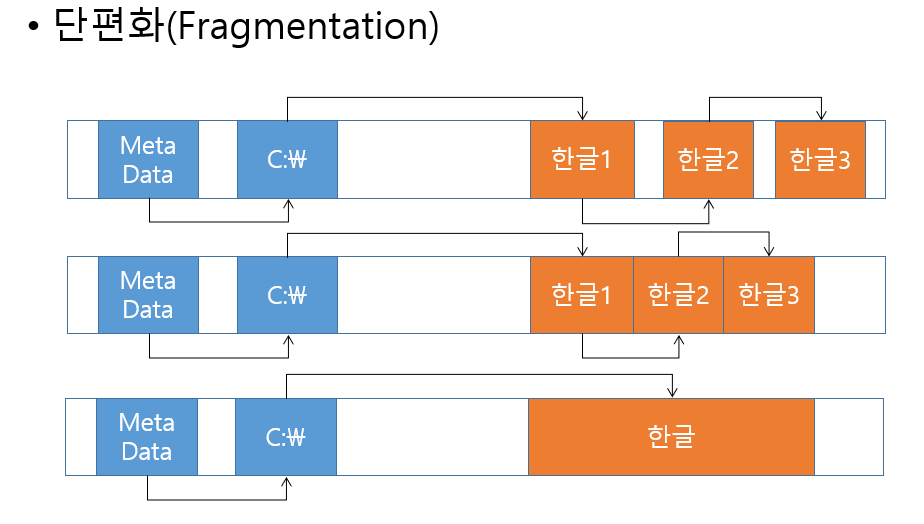
As shown in the image above, older HDDs stored file data in segments. So to load a file, Links(If you have learned a programming language, it is easy to understand if you think of a linked list.) I had to read the data from the file one by one. Since it is naturally faster to read one file at a time than to read a file that is distributed, I used to Disk DefragmentationIt would have done a lot of work. But nowadays, it is not necessary because it saves files sequentially, not in fragments. Another speed-related concept is that DISK Nand Form and NOR There is a form. Nand is a cell in a semiconductor. SerialSince it reads data sequentially, it is slower than NOR. However, it is easy to increase capacity and write data quickly without having to remember the address of each cell separately. This type of Nand-based disk USB or SSDThere is. NOR is a cell ParallelIt is written as a random access array, which makes reading fast, but writing is slow because it records one cell at a time. It is expensive and fast for reading, and suitable for devices such as mobile phones. Mobile devicesIt is used more often. For mobile devices, there are more instances of reading large amounts of data than writing it.
※ Just like the engine RPM concept in a car, the disk RPM (Rotations per minute)The faster the speed, the better. A typical hard disk spins at 7,200 RPM, and mobile and laptop drives are slightly slower.
Ⅳ. Disk-related exercises
The first exercise is Dumping a diskA dump is simply a process of converting the disk structure described above into an image format that can be read through the Imager program. Although the original cannot be used as evidence if it is legally tampered with, it cannot be used during forensics. Therefore, only the FTK Imager program distributed by the Forensic Science Association is allowed, and I will use this program to dump the disk.
The parts related to the program
Please refer to this web page.
When you run FTK Imager,
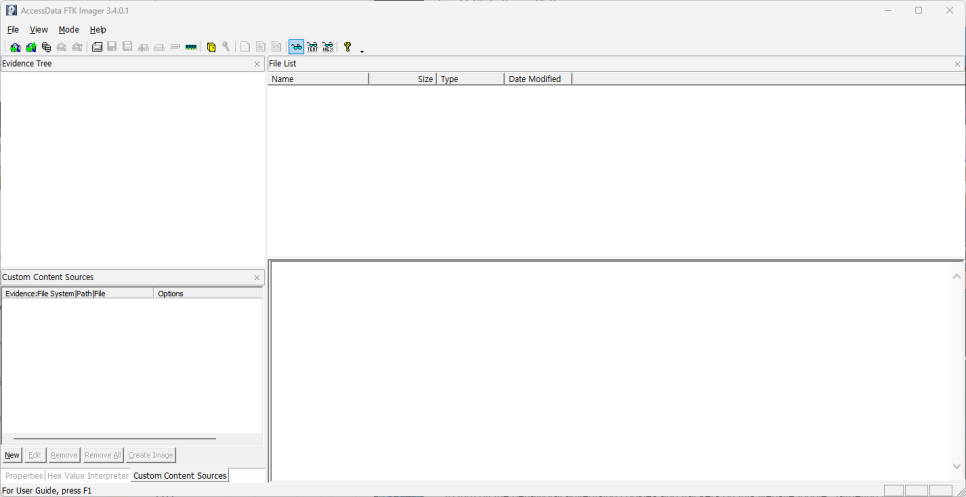
You will see this screen. Let's assume that the USB is connected and we will dump the USB.
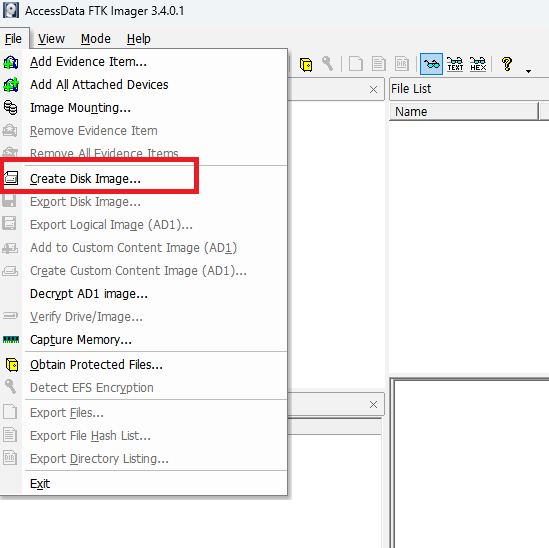
Press Create Disk Image
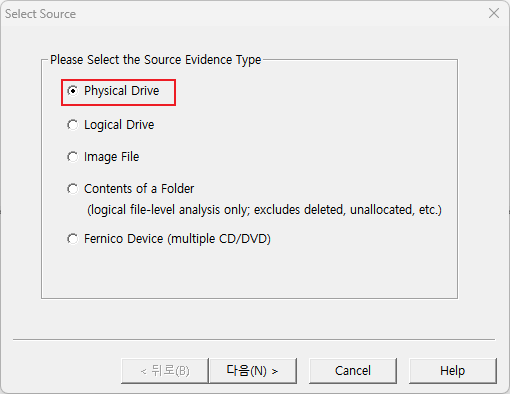
It asks which drive to use. Since Logical Drive means partition and Image File means an existing disk dump image, I'll skip those and select Physical Drive to choose the USB.
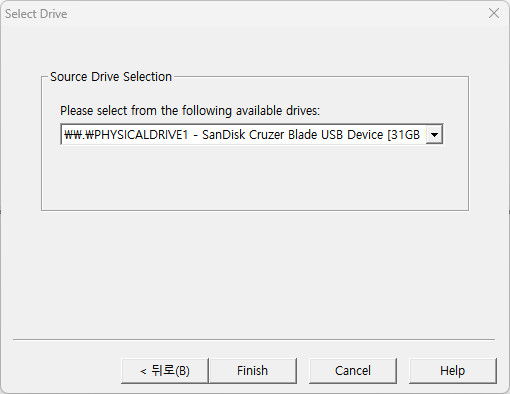
Once you select the actual dumpable disk device and click Finish,
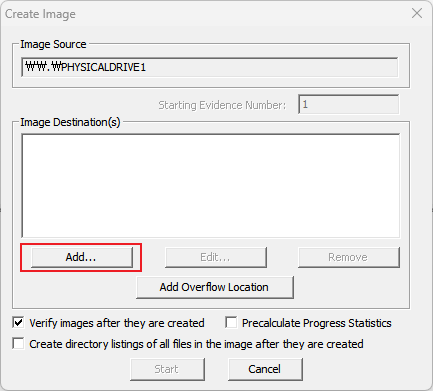
Here, we specify the image type using Add. The most commonly used method is E01, which is Encase. This part requires a little more research.
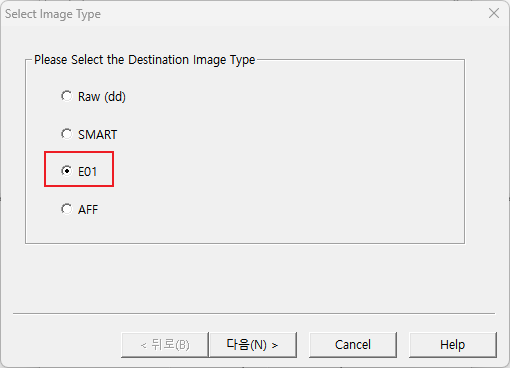
and keep passing it on.
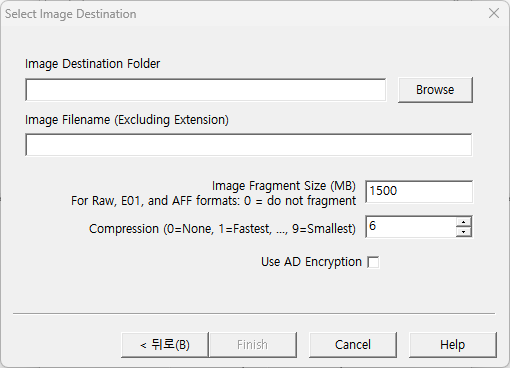
You will be prompted to enter a location and file name. Here, Image Fragment Size indicates the size at which the image file will be split when saved, and Compression indicates the degree of compression. As the value approaches 9, more compression will be applied, reducing the file size, but the speed of creating the image file may be slower.
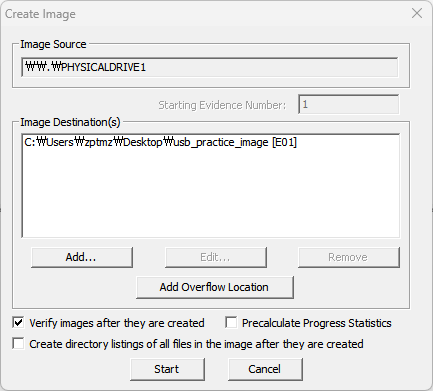
And when you press Start, the image file creation will now begin.
Reviews
When I was learning DISK, I really felt like I was hitting a wall. But as I wrote this post for multiple practices and reviews, I feel like the structure is gradually coming into my head. I plan to write about DISK-related practices in my next post while reviewing them a bit more!