
Ⅰ. Overview
Linux file structureat the very top is the root directory, and underneath bin, boot, dev, home, lib, media, mnt, opt, sbin, tmp, usr, var, proc, run There are directories, and we need to know what files are in each directory. We also need to know which files or directories to look for and access for specific tasks. Linux has Various commandsHowever, today we will learn about commands related to user groups, commands related to files and directories, link commands, administrator commands, and commands related to network and system settings. We will also learn how to make it easier to edit documents in Linux. vi editorFind out about it.
Ⅱ. Linux File Structure
The file structure in Linux may vary slightly between distributions, but it has a nearly identical structure. You need to understand the file structure to easily perform server setup or security tasks using commands.If you don't know the structure, you won't know how to work with it. Even when I first learned Linux commands, I didn't know how to use them, but as I understand the file structure, I seem to be getting a better grasp of the concepts.
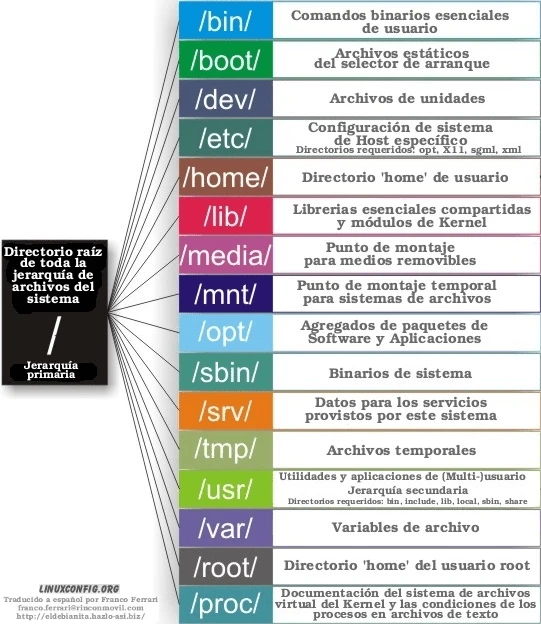
By default, at the top root directoryIt is similar to 'Local Disk c:\' in Windows, and since it exists at the very top of the entire directory structure, all paths in Linux start from the root directory. When you log in as the administrator account, you have a path starting from this directory.
bin
This directory contains the executable files on Linux. The system has a set of binary files, which contain files related to common system commands.
boot
It contains files related to the kernel and the information that the kernel reads when it boots.
dev
This directory contains driver-related files. If you use a virtual machine, it contains information for controlling devices for virtual hardware, as well as driver-related files.
etc
This directory may be accessed frequently when building and operating the server, and all configuration files related to Linux are stored in this directory. If you later install a server (e.g., nginx), you can also access and modify the related configuration files in this directory.
home
This directory may seem similar to the user account directory in Windows. When you create a user account in Linux, a directory with the user account name is created under this directory. You can usually upload multiple files to this directory, send them to another path, or modify them, among other tasks. When you log in as a regular user account, you start from this path.
lib
Like a Windows DLL file, which allows multiple processes to share the same code to efficiently manage memory (resources), in Linux, a so file is a collection of files. Just as in Windows, where the print function is available from any window, in Linux, common program functions are executed by referring to this directory.
media, mnt
To understand this directory, you need to know the concept of mounting. Mounting is the process of connecting a device, such as a USB drive or disk, to a directory. In Windows, when you connect an external hard drive or USB drive and back up or import files, you are mounting the physical device to the directory, making it available for use.
※ On Ubuntu, there is a cdrom directory for automatic mounting. The difference with the media directory is which device is being read, in the case of cdrom CD/DVDYou can read it, but for media, you need to mount it manually. USB, external hard drive, SD card, and moreReads it.
opt
Just as user programs are installed in the 'Program Files' directory in Windows, externally installed user programs in Linux are installed in this directory. This is typically the directory where external programs are installed using the 'sudo apt-get install program' command.
usr
Similar to the opt directory, it contains the default applications used by the regular user account, not the external user account. It includes system-related files that are associated with the regular user.
var
Logs and data files are stored here. Web servers, databases, and other sources are installed here, and there are many files that users modify directly. This directory can be quite involved in setting up, managing, and operating a server.
proc
In the Task Manager, which can be accessed by pressing the ctrl+alt+del keys on Windows, you can check processes. This is where you can view process-related information, such as how much memory each program is using, how much CPU it is consuming, and so on. Similarly, in Linux, this directory is where you can view process-related information.
12. run
It manages sockets, process IDs, and other items needed for communication between servers, and stores files related to the services that are running.
13. seconds
The bin directory contains common system commands. If the bin directory contains common system commands, it also contains essential system binary files that are only accessible to users with root privileges, such as 'sudo apt update', 'sudo su', and 'sudo apt-get install program'.
14. tmp
It is a temporary file directory that can be deleted when the system is shut down and restarted. It deletes buffers or temporarily downloaded files when they are no longer needed. It serves as a temporary storage location for temporarily downloaded files before moving them to the actual directory of use.
※ From VMware Copy the virtual machineThere is a way.
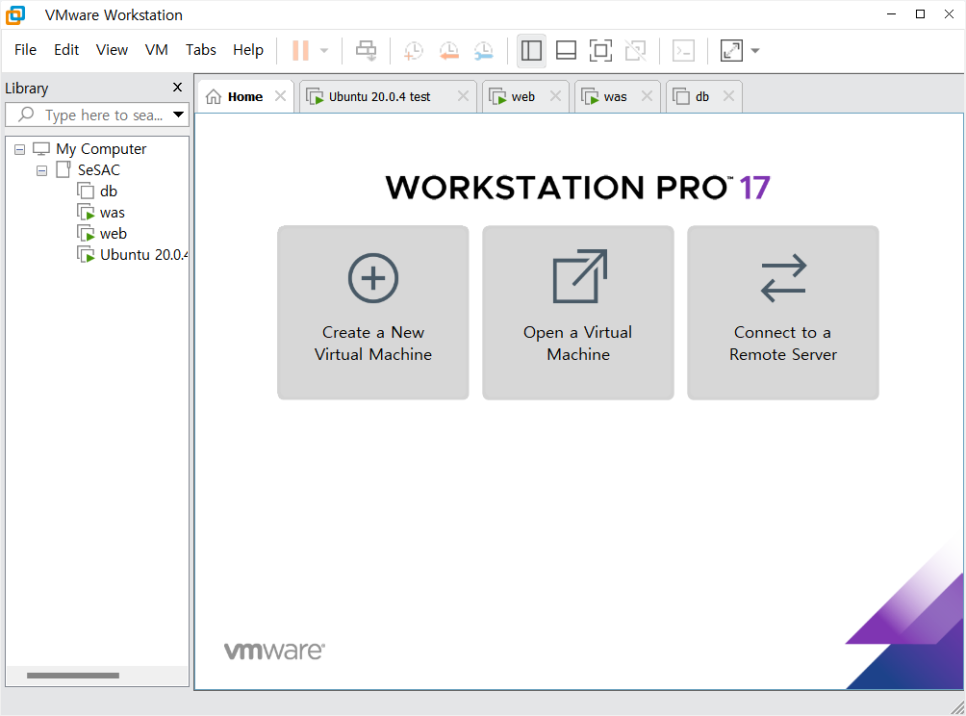
In the screen shown above, place the mouse over the virtual machine you want to copy, right-click, and select Manage - Clone.
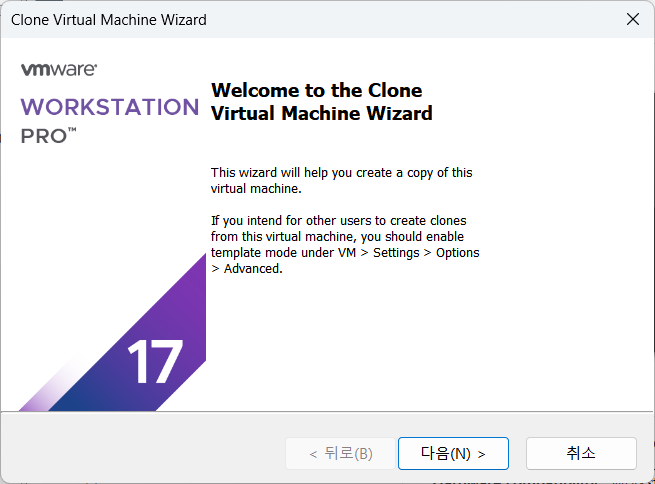
This screen appears.
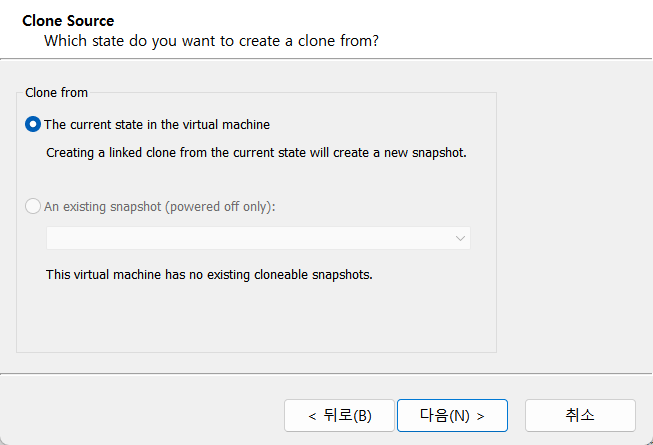
If there are existing snapshots on the next screen, you can copy the data based on them, or if there are no snapshots, you can copy the current virtual machine state as it is.
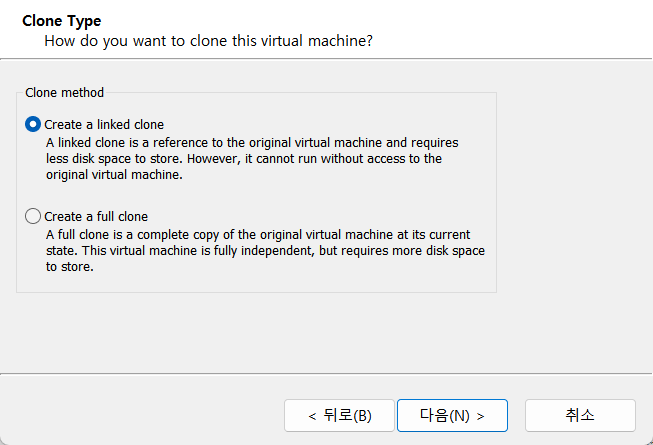
Here, you can choose to copy the entire data of the virtual machine or link it to the original virtual machine. If it is related to deployment, copying to a link can save disk space. A full clone, on the other hand, takes up more space because it copies the entire data.
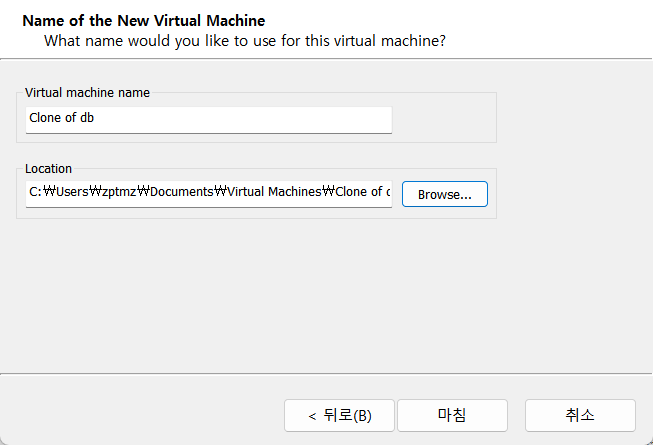
Finally, you specify the name and directory path of the virtual machine.
Ⅲ. Linux commands
Here are the commands I've learned since my last post.
Commands related to users and groups
Among the files related to users and groups /etc/passwd The file is important. When you connect to Linux and log in, you can restrict login by granting permissions to this file, and all accounts are stored in this file.
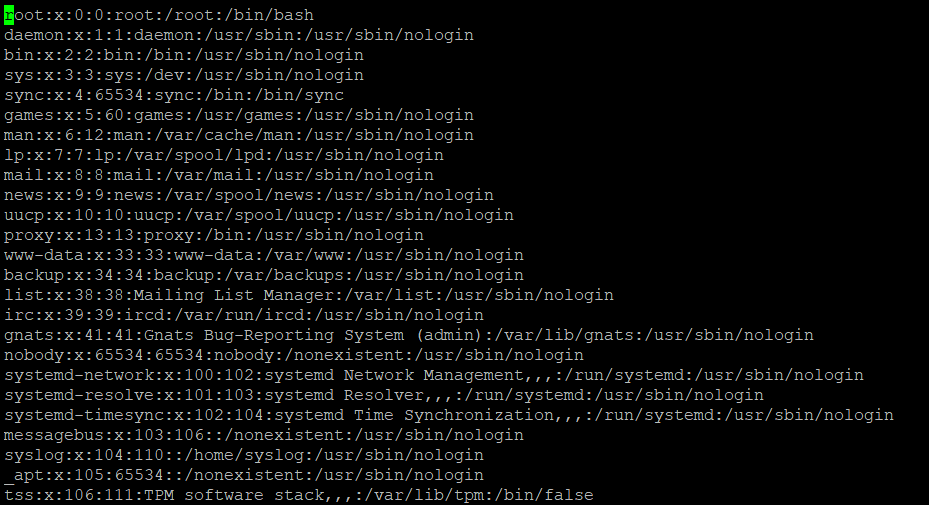
As shown in the above image, the /etc/passwd file is structured as follows, with one line of configuration: :'(colon)The first distinction is the user account name. The following 'x' symbol Encrypted passwordmeans, and the first of the following numbers User ID, and the second is the user's affiliation Group IDmeans. Next Additional informationAnd then the next path is Home Directorymeans the home directory. When you log in with a user account, you are automatically connected to that directory. The information displayed at the end is the default path used by the system. ShellFor example, if it ends with /bin/bash, it runs the shell when you log in as the root account.
※ Previously, you could view the password for a user account in the /etc/passwd file, but since this file is accessible to all user accounts, it is for security reasons. /etc/shadow It hides a one-way encrypted password in the file.
※ If /bin/bash is executed by default when logging in, /usr/sbin/nologinEven if the password is correct, it limits login. Similarly /bin/falseIt blocks the login, but even with the correct password, it says the password is incorrect and restricts the login.


It's a Linux shell, and if you look at the two pictures above, it's at the very end. '$'Does it end in an L? '#'The end of the username indicates whether it is a regular user ($) or a super user (#). Typically 'sudo ~'Administrator commands that begin with the letter L are available when superuser privileges are enabled.
We introduce user- and group-related commands that can be used in many situations.
#유저추가
adduser 유저명

#유저 비밀번호 지정 및 변경
passwd 유저명

#유저 속성 변경
usermod [옵션: -c, -d, -g, -l, -s] 바꿀 내용 유저명
-- c옵션은 사용자에 대한 주석이다.
-- d옵션은 사용자의 홈디렉토리 경로를 변경한다.
-- g옵션은 사용자가 속할 그룹을 변경한다.
-- l옵션은 사용자 이름을 변경한다.
-- s옵션은 사용자의 로그인 셸을 변경한다.

#유저 삭제
userdel 유저명

#유저 암호 주기적 변경 설정
chage -m 숫자 유저명
-- m옵션 뒤의 숫자는 달(몇월)을 이야기 한다.(만약, 2라면 2달 간격이다.)

#그룹 목록
groups
-- 현재 사용자가 속한 그룹을 보여준다.

#그룹 생성
groupadd 그룹명

#그룹 삭제
groupdel 그룹명

#그룹 암호 설정 혹은 관리 수행
gpasswd 그룹명
Although omitted in the above command example, administrator privileges are generally required to use commands related to users and groups.
※ When installing Linux, the first account created is a super account, but when logging in, it becomes a regular account. 'sudo su'This can be changed to a superuser account, allowing commands that require administrator privileges to be executed without the use of sudo.
2. File permission-related commands

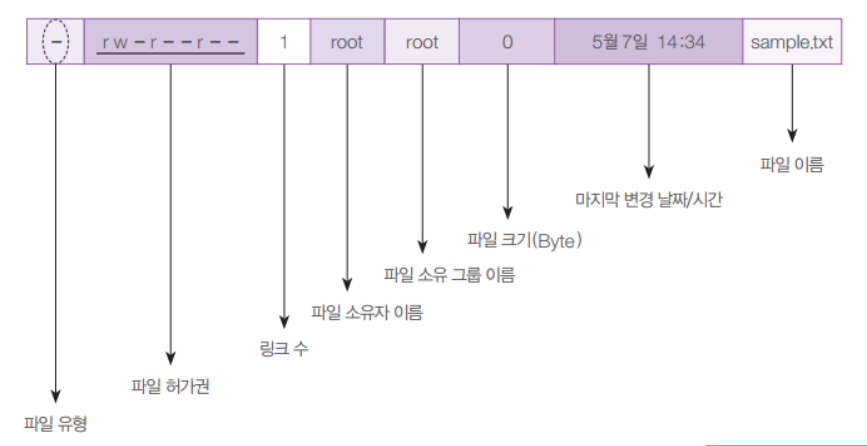
In the photo above, in the front '-', 'd' are file and directory respectivelyrepresents. followed by 6 digits r, w, x, - The combination of these four characters and symbols is important, as it represents the access rights to a file or directory. There are nine characters, excluding the file and directory separators, and they are divided into three groups. Account permissions, group permissions, and other user permissionsThat is. 'r' is read permission, 'w' is write permission, 'x' is execute permissionThe following is a picture of the contents.
※ 'man' commandIf you enter a command that you want to know more about after the man command, there is a help command that lists the related options and provides their descriptions.
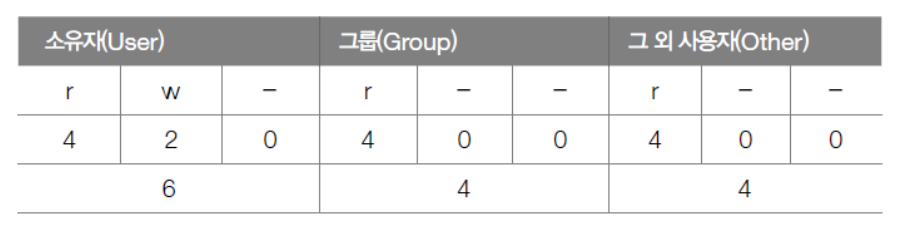
If the permissions are displayed as numbers, they are expressed in octal form and look like this: If you want to grant read and write permissions, use the number 6. If you want to grant read permissions only, use 4. If you want to grant all permissions, use 7. If you want to grant execute permissions only, use 1. If you want to grant no permissions at all, use 0.You can also use letters instead of numbers, for example, 'r+w' gives the owner write permission.
#파일 허가권 변경
chmod 숫자(ex. 777) 파일명, 디렉토리명

#파일 소유권 변경
chown 변경하려는 소유자, 그룹 변경하려는 파일, 디렉토리
chgrp 변경하려는 그룹 변경하려는 파일, 디렉토리
Both commands can change permissions to all subdirectories with the '-R' option.
3. Link-related commands
A file has two links. Hard LinkAnd Symbolic Link or Soft LinkHowever, a hard link shares data with a file that has been copied from the original, and even if the original file is deleted, the data remains and can be retrieved separately. It also shares the same inode.
※ What is an inode? It represents the metadata of the file (inode number, file mode, number of links, owner ID, file size, address, etc.). In the case of a hard link, it refers to the same inode number, but a symbolic link has a different inode number from the original.
So, a symbolic link creates a new inode number and connects to the original file, which is essentially a different file from the original. Even if the original file is deleted, the link remains, but if the original file is missing, an error occurs when you try to load it. It may be easier to understand if you think of a shortcut that is installed along with a program on Windows.
ln 원본 경로/파일 대상 경로/파일명
ln -s 원본 경로/파일 대상 경로/파일명
Above is how to create a hard link file, and below is how to create a symbolic link file.
4. Package-related commands
The dpkg command was used in Linux to install external programs, but it had dependency issues that made it inconvenient. apt commandFor example, when you install python, the related packages that are run are automatically installed using the apt command, but dpkg requires each program to be installed separately using a command. /etc/apt/sources.list If you look at the file, you'll see the basic repository url It contains a path, and using the apt command, it references this repository to install the related packages. Additionally, there is a private repository where third-party programs can be installed, as shown in the path above. sources.list In the file url You can install it by adding the path.
sudo apt-get install 프로그램명

#패키지 목록 업데이트
sudo apt-get update

sudo apt remove 패키지명

#사용하지 않는 패키지 제거
sudo autoremove 패키지명

#내려 받은 파일 제거
sudo apt clean/apt autoclean

#패키지 정보 보기
sudo apt-cache show 패키지명

#패키지 의존성 확인
sudo apt-cache depends 패키지명
5. File compression-related commands
When compressing files in Windows, you’ll probably think of zip. Linux can also compress files, but in Linux, tarYou'll see more of them. Basically, just bundling files is in the form of tar. xz, bz2, gz, zip, Z, etc.It is necessary to add compression in this form.
#파일 묶는 명령어(파일을 묶거나 풀어준다)
#묶기
tar cvf my.tar 경로

#풀기
tar xvf my.tar

#cvf와 xvf는 옵션
#옵션의 종류로
#동작 관련 옵션은 c - 묶기, x - 풀기, t - 경로 확인
#나머지 옵션으로 f - 파일, v - 묶거나 푸는 과정 보이기, J - tar + xz, z - tar + gzip, j - tar + bzip2

#이렇게 묶은 파일을 압축하고 풀 수 있다.
xz 파일명
xz -d 파일명.xz
bzip2 파일명
bzip2 -d 파일명.bz2
gzip 파일명
gzip -d 파일명.gz
zip 새로운 파일명.zip 압축할 파일 이름
unzip 압축 파일 이름.zip

#파일을 묶으면서 동시에 바로 압축까지 할 수 있다.
#gzip 형태
tar cvzf 파일명.gz 경로
tar xvzf 파일명.gz

#xz 형태
tar cvfJ 파일명.xz 경로
tar xvfJ 파일명.xz
※ For the file name to be compressed extensions such as .gz, .xz, and .zipThe reason for adding the extension is to avoid confusion about what type of compressed file it is. Since Linux does not have an extension concept, it is cumbersome to distinguish between files using the file command.
6. File search-related commands
The Find File command findThere is. As an option -name (file name), -user (owner), -perm (permissions) and others. -print, -execAfter finding the file, you can execute additional commands. If -exec is not specified to execute an external command, the default is -print.
find 경로 옵션 파일명/소유자/허가권 -print(디폴트), -exec 추가 명령어※ which command: Finds the executable path for the command. whereis command: Finds the executable file, source code, and manual page locations for a command. locate file name/keyword: Provides quick search for file names/keywords in the file list database.
grep 키워드 -r 경로
grep 키워드 경로
There are commands available for searching content in files. 'grep keyword'If you add '-r' as an option, it will search through subdirectories as well.
7. Network-related commands
Modifying files for network configuration /etc/netplan/01-network-manager-all.yaml You can change it through a configuration file, but because it must be formatted correctly and entered one line at a time, there is a command to edit network settings through the GUI. 'nmtui'It's as simple as selecting and modifying the BIOS settings.
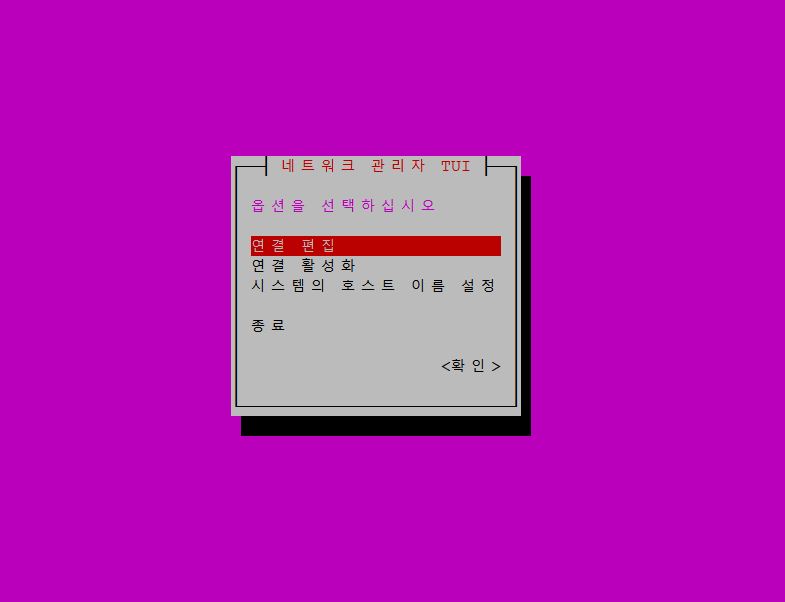
Next ssh commandAnd scp commandThere is. The ssh command allows you to remotely connect to another virtual machine from a virtual machine that is already connected to a client such as PuTTY. scp can copy files to or from a remote server. One of the options for the ssh command is '-p', which allows you to enter the port number of the server you want to connect to. For security reasons, the port number must be changed if it is not the one used by the application being served, so you must match it when connecting.
ssh 계정명@IP주소(원격으로 접속하고자 하는 서버)
#그 후 해당 서버의 계정 비밀번호로 로그인해야 한다.
#원격 서버에서 내 로컬 서버로 복사(다운로드)
scp 원격서버계정@IP주소:경로 ./내서버경로
#내 로컬 서버에서 원격 서버로 업로드
scp ./내서버경로 원격서버계정@IP주소:경로※ There is a program on Windows that can send files directly to a virtual machine Linux. The address is attached below.
Introduction to WinSCP :: WinSCP
※ 'wget urladdress' You can also download directly from Linux via the URL address using the command.
※ Ubuntu can be installed and run on a server at the same time, but Red Hat family requires separate installation and operation. * sudo apt-get install nginx
8. System-related commands
There are additional commands that should be learned, but we'll briefly introduce them here. cronAnd atThere is also cron, which allows you to automatically run tasks that repeat periodically, and is useful when used with shell scripts. at can schedule and execute one-time tasks. cron is similar to the task scheduler in Windows, which is widely used by system administrators. It is useful for backing up data.
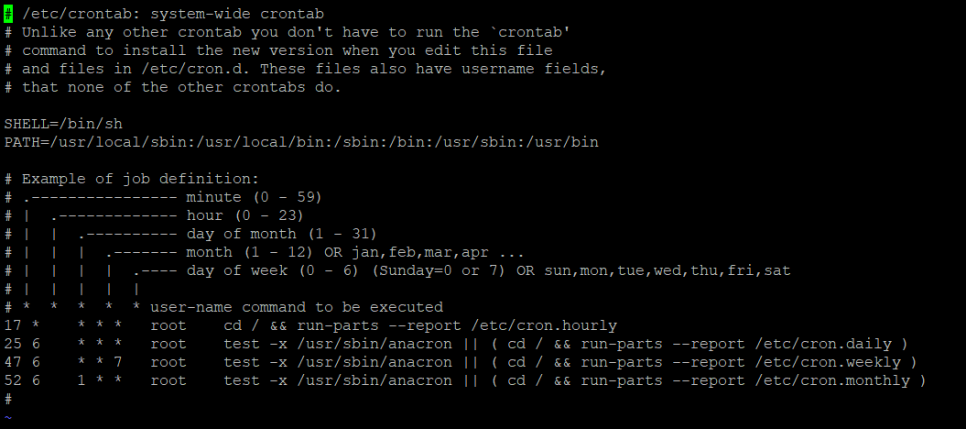
for commands such as cron 'Minutes, days, months, days of the week, user executable commands'The at command is used in this form. 'at time > Scripts > Ctrl+D'You can use it in the form of a script, and when the script runs at a specified time and completes, press Ctrl+D.
psAnd topThere is a command called ps, which outputs process information. '-ef' It is used in conjunction with the '-ef' option, which is related to the currently running process. UID (User ID), PID (Process ID), C (CPU Utilization), STIME (Start Time), TTY (Terminal Type) It displays the UID, which is the user ID that executed the process, the PID, which is the process's unique identifier, and the C, which represents the average CPU usage of the process in units of a fraction of a second. STIME is the time or date the process started, and TTY is the type of terminal the process is running on, with '?' indicating background, pts/0 indicating remote access, and tty1 indicating the local console. The top command serves a similar role to the Windows Task Manager, outputting information about system resources, with options '-n'You can use this to specify how often the screen is refreshed, in seconds.
dmesg commandYou can check the messages that appear when the system boots using system commands. This can help identify processes that did not run properly due to boot-time errors or system issues.
※ Command Keywords to execute sequentiallyYou can append a ';' (semicolon) to the end of the command to continue it. 'command; command; command;' You can execute commands sequentially in this way. ';' is the end of the commandThe echo command outputs a string to the terminal, and sleep is a command that pauses execution for a while.
echo "abc"; sleep 1; echo "1234"; sleep 1; echo "finish";IV. Linux Editor
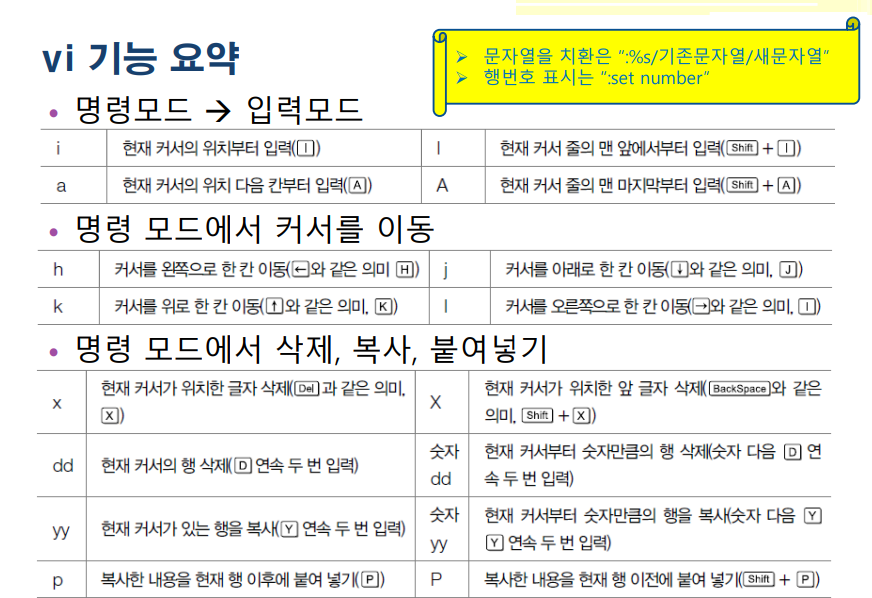
When editing files on Linux, the most commonly used standard is vi editorThat is. Since Linux is designed to be entered entirely with the keyboard, An editor is essential, as it can be cumbersome to edit Notepad on Windows and upload it to Linux or download it from the web. However, at first, you may have a hard time getting used to the editor (due to being used to a GUI environment like Windows), but it is recommended to practice. Basically, 'Command Mode', 'Input mode', 'Line command mode'There is.
vi /etc/passwd(경로와 파일명)As shown above, if you enter vi and then enter the path and file name, the editor will start. When entering, you can switch to command mode by default or change to line command mode. To enter line command mode, :'(colon)You have to enter it, but once you enter, w(save), q(terminate) You can select commands such as w to exit the edited content, q to exit the editor, and w! or q! to ignore warnings and execute the command immediately. To switch from command mode to input mode, start at the current cursor position. 'i'Press or 'a'Just press it. To exit input mode and return to command mode, 'ESC'Just press the button. For basic functions, refer to the table below.
Reviews
There is certainly a lot of new content to learn, and the more I learn, the more I have to memorize. But it was great to be able to understand the network and server-related content that I didn’t understand well when I was working on and deploying web projects in the past. I’m curious about how it will be connected to the cloud later, and I haven’t used Linux commands much, so I’m looking forward to the future. 😁