
Ⅰ. Overview
LinuxLinux is an open source operating system created by developers around the world based on Unix. While Linux can run on hardware devices such as computers as an operating system, it can also be experienced in a virtual machine environment where Windows OS is already installed. Virtual machine (Virtual Machine, VM)VMware is a type of virtual machine that allows you to install and use various operating systems, including Linux and Windows, in a virtual environment. ubuntuIt introduces how to install it and how to use basic commands.
Ⅱ. What is Linux?
LinuxTo put it simply, UnixIt is an open-source operating system created by developers around the world. Unix is the foundation of all modern operating systems. Linux has several branches, including Debian, Red Hat familyIt can be divided into two categories: the Debian-based operating system, iOS from Apple, and the Ubuntu-based operating system, which has become popular due to its widespread use. Debian-based systems are well-known, while Red Hat-based systems are open source but offer paid support. Red Hat has CentOS, which is a good system to look into.
Hardware - Kernel - In a structure composed of applications, the Linux operating system operates through the kernel.
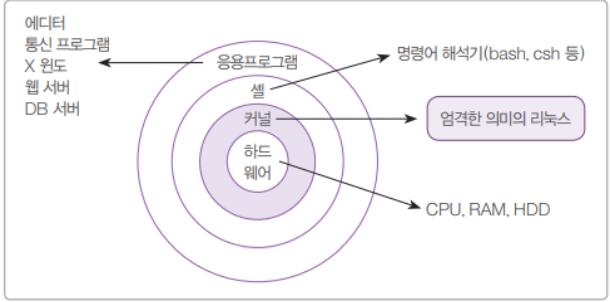
Windows also has a kernel, which is like the engine of a car. Roles behind the scenes, such as booting, file listing, properties (size, type, location), scheduling for multitasking, and memory space managementIt acts as the intermediary between software and hardware, controlling the interaction between the two. You’ve probably encountered it at some point when using Windows. Blue ScreenThis is a serious system error where the kernel is in a panic state and can no longer process or control anything.
※ A blue screen indicates a hardware error due to a drive failure. Hardware drives are provided by the hardware manufacturer and are designed to fit specific versions of Windows or Linux.
ShellThe command interpreter interprets the commands and sends signals to the kernel, which sends electrical signals to control the hardware. The hardware then sends the electrical signals back, allowing the kernel to run and manage applications through the shell. The shell is a command prompt in Windows, based on the CLIIt contains commands such as ping, ipconfig, and notepad, which can be used to run and manage applications. The shell has built-in scripts that automate a series of commands and enable repetitive tasks.
Before entering the virtual machine, you need to download the Linux ISO file. This may take some time, so we recommend that you do it in advance.
Ubuntu 20.04.6 LTS (Focal Fossa)
Ⅲ. Virtual machines and networks
Virtual machine
Virtual Machine (VM)It acts as a virtual computer that serves as a router. Virtual GatewayIt allows multiple operating systems to be run on multiple virtual environments on a single computer. The virtual machine program includes Guest OSThere can be multiple instances Host OS (My computer OS)It accesses the virtual router. When you install VMware and go to the Windows network settings, you will see the VMware Network Adapter VMNET. LAN chip (hardware that connects the network and the computer)The actual hardware is not used (although the hardware of the host computer is utilized), but rather, through a virtual network driver (the "hardware is controlled through a driver program"), it serves as an interface that allows the host OS to access the guest OS.

※ Router (a combination of hardware and software that helps connect different networks)What is a gateway? It is a kind of gateway that serves as a real-life example, such as an airport. It connects two networks that communicate using protocols, much like how Koreans must pass through an airport to enter another country. Each network has its own communication characteristics for transmitting messages, and these characteristics are defined by rules. ProtocolThey communicate with each other by transmitting and responding to messages according to the rules of the protocol. Examples of protocols include HTTP (Hyper Text Transfer Protocol)There is an address that we can see when we use the Internet, which is ' http://', 'https://'로 They are things that stick around. For example, when we use Naver, they help us easily see the information displayed on the Naver screen.
Network
One of the computer hardware components that the operating system can use is the LAN chip, thanks to the network driver. As mentioned earlier, the network driver is a program that controls the hardware, the LAN chip. adapter InterfaceIt works by sending and receiving electrical signals to and from other devices. The reason I can access Naver, Google, and Daum on the web through my computer is because of the Internet Protocol, or IP. IP address Because IP addresses are largely IPv4 (IP version 4), IPv6 (IP version 6)There is a value that tells us how a network device on a personal computer is identified on the network. Usually, when using a router, the IP address is 192.168.~ and so on. This IP address is a value randomly assigned by the router, and it can be shared between devices connected to the same router. Internal (private) IPYou can connect to the outside to access Naver, Google, or Daum. Official (authorized) IP addressYou need it.
※ DNS (Domain Name System) serverBut since computers can only read numbers in binary, 0 and 1, they need to be given names that humans can understand. Convert IP address valuesIt plays the role of providing. For example,www.naver.comThe reason we can easily remember a Naver address is because the DNS server converts that address into an IP address, such as 192.168.1.1 (for example), so that the computer can read it.
The router automatically assigns and manages these IP addresses to devices connected to the network (my computer). DHCP (Dynamic Host Configuration Protocol) serverThe DHCP server plays the role of Various network information (IP address, subnet mask, default gateway, etc.)It has a dynamic configuration that does not require the user to set it up manually, providing convenience for management. Therefore, the virtual router in the virtual machine program uses the hardware of the host computer to assign IP addresses to the guest operating system through a DHCP server. IP addresses are assigned to devices using the same switch, similar to how internal IP addresses are assigned to devices using the same switch. Shared only between guest OSesWhat you can do Internal IPThat is.
As explained above, the host OS and guest OS have similar IP addresses, making it appear as though they share the same network environment, but in reality Other network environmentsIn other words, the Windows LAN adapter and the VMware Network adapter that appear in the network settings are two different network environments. So how can I connect to the virtual environment on my computer?
The reason is that the host OS connects to Naver through an external IP, just as if it were connecting to the Internet. Virtual router (gateway) and DNS serverWhen you send a request, This is because the virtual router connects to the IP address assigned to each guest OS by the DHCP server. So how can the host OS communicate with the external IP of the virtual environment?
The router (both virtual and physical) NAT (Network Address Translation)because it converts the external IP to allow them to identify each other. That is,
My computer communicates with the LAN adapter and router through the VMware Network adapter and virtual router. To understand this more clearly, we need to understand Network Address Translation (NAT), which we will cover in later lessons and through personal study.
VMware Workstation Pro 17
There are various ways to use Linux. One way is to install an ISO image file by allocating a new partition and installing Windows OS, and another way is to use a virtual machine. To use a virtual machine, you need to install a program. VMware Workstation Pro 17There is a Pro version, which is paid and has a 30-day free trial, but we don't recommend the Player version because it doesn't include the important snapshot feature.
Download VMware Workstation Pro
Snapshotsis a technology used in virtual environments to store and manage what has been done or installed on a computer. ImageImages saved on a monthly basis can be easily restored to the previous snapshot if they are corrupted due to an error. If there are no snapshots, a complete disaster may occur, requiring a return to the beginning. In addition, in the case of a database corruption due to hacking or ransomware that cannot be recovered, the absence of snapshots can lead to an extreme situation where everything must be restored or cannot be restored at all. Incremental backup functionality for snapshotsThrough this, you can easily identify and recover the pre- and post-situation of a specific event by analyzing the logs. Incremental backups Only data that changes after an image is taken is recorded as a new snapshotSnapshots are a feature that Tree structureIt says so.
※ Ransomware: In banking and other industries, the encryption algorithm used for authentication keys is a one-way algorithm that cannot be decrypted. Because this algorithm is used in ransomware, it is impossible to recover the data.
I'm attaching a well-documented blog post about installing VMware Workstation Pro.
How to download and install VMware Workstation Pro 17
I want to thank the owner of this blog.
When you install and run VMware, you will see this screen.
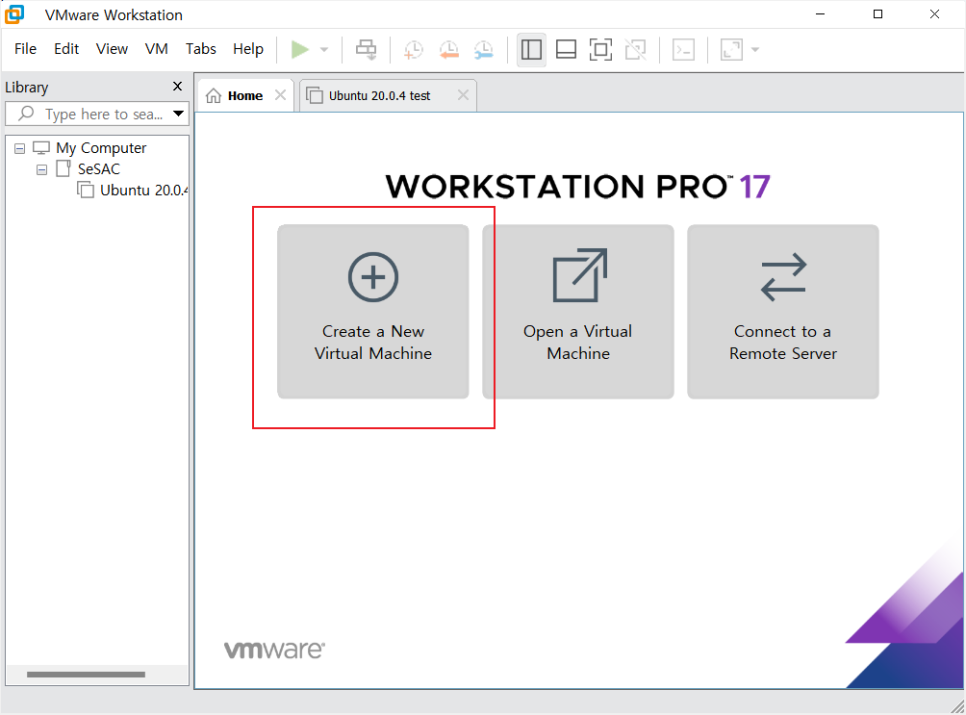
Before installing Linux, you need to create a virtual machine. In the screenshot above, click Create a New Virtual Machine.
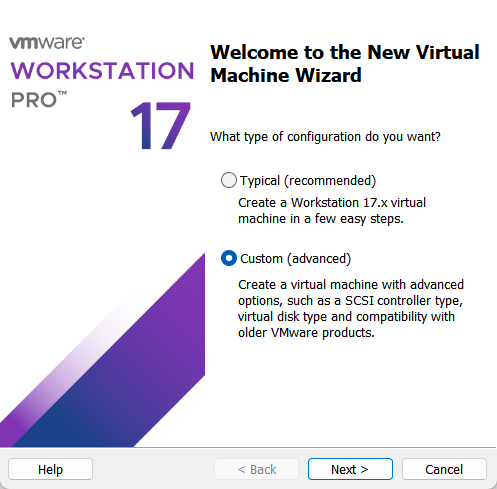
When you click, this screen appears. Here, you can select Custom because you can configure the hardware, operating system, and network type individually.
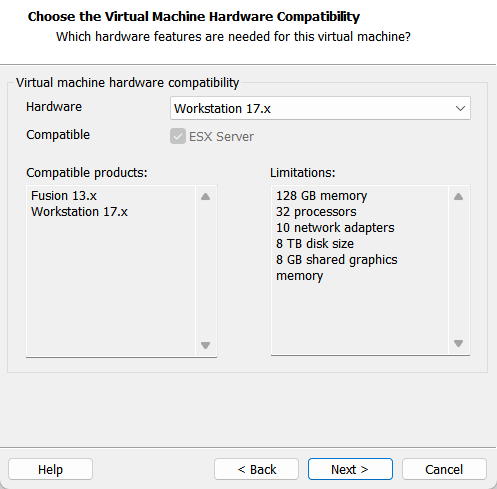
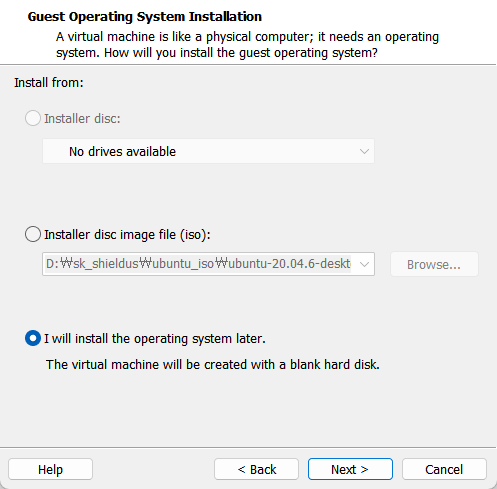
This section asks whether to install the ubuntu iso file. Since it can be set up after booting and installed individually, choose the one at the bottom.
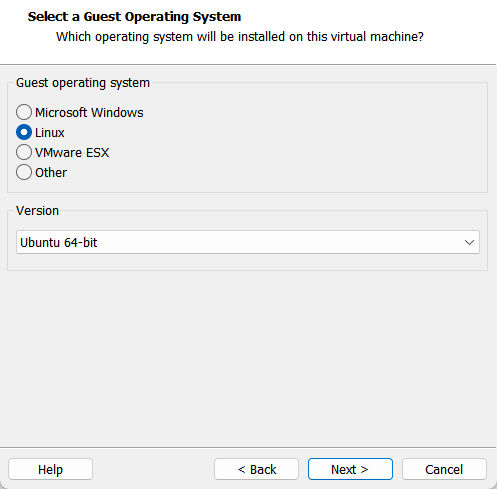
Since the next screen will be using Linux, you should of course choose Linux and select either ubuntu or ubuntu 64-bit, depending on your computer's bit version.
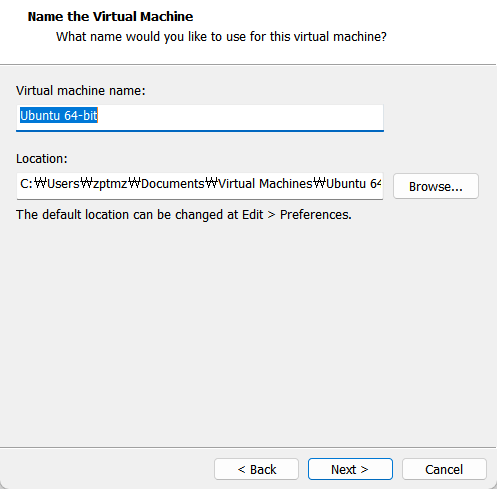
The next screen is where you set the virtual machine name and directory settings. You can do this freely.
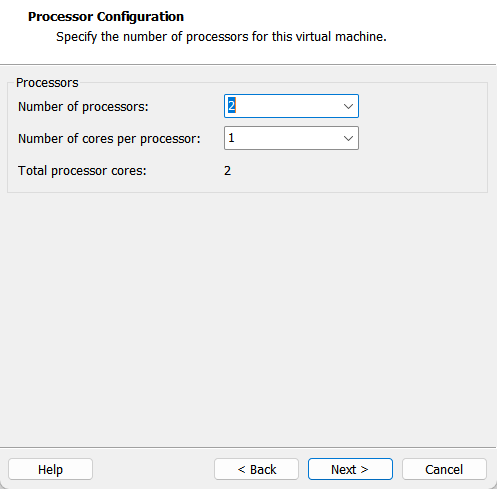
This section also asks how much of the process to use, and it can be set as the default.
This part requires configuration, as it uses the hardware of a regular personal computer. If multiple virtual environments are created, the computer may slow down due to lack of memory. Also, when using Linux on the console, it does not utilize x-windows (GUI), so it is possible with less memory. Therefore, we recommend 1GB, but if booting is slow after configuration, it is possible to increase the memory a bit.
※ 3-tier architecture: The server will be configured by dividing the client layer, application layer, and data layer. This means that more than three virtual environments will be created, and the memory usage on a personal computer may slow down. We will study this structure later.
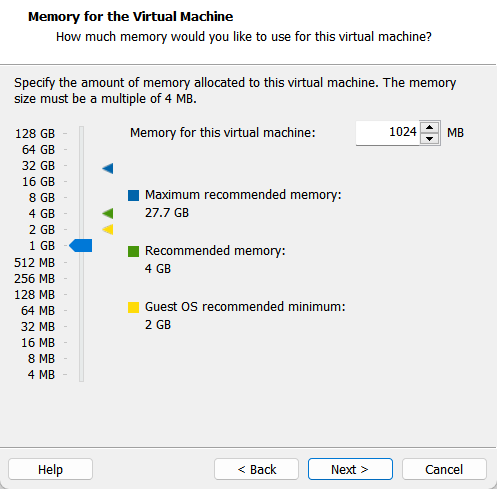
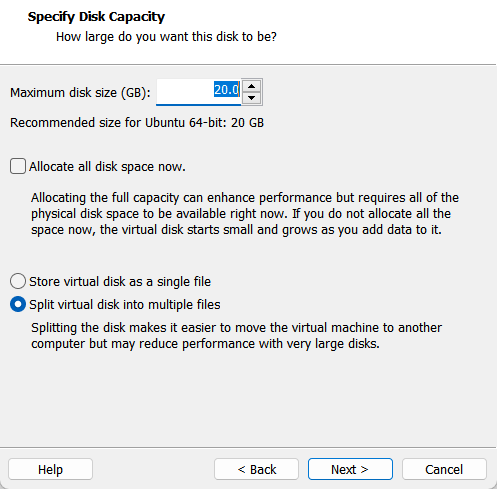
You can keep pressing the next button until this section appears, as it uses the actual disk space of the computer. For general learning purposes, 20 gigabytes is sufficient, but if necessary, you can increase the capacity further.
Once you get here, all the settings are complete, so just press Proceed and then Finish at the end.
※ If you go to the directory you set, you will find a file called 'ubntu 64-bit.vmx'. You can use this file to modify the settings or version again. 'Ubuntu 64-bit.vmx.lck (Lock file)' If the virtual machine is abnormally terminated, the Lock file may remain. However, if it does not boot due to an error, you can enter the directory, delete it, and restart it.
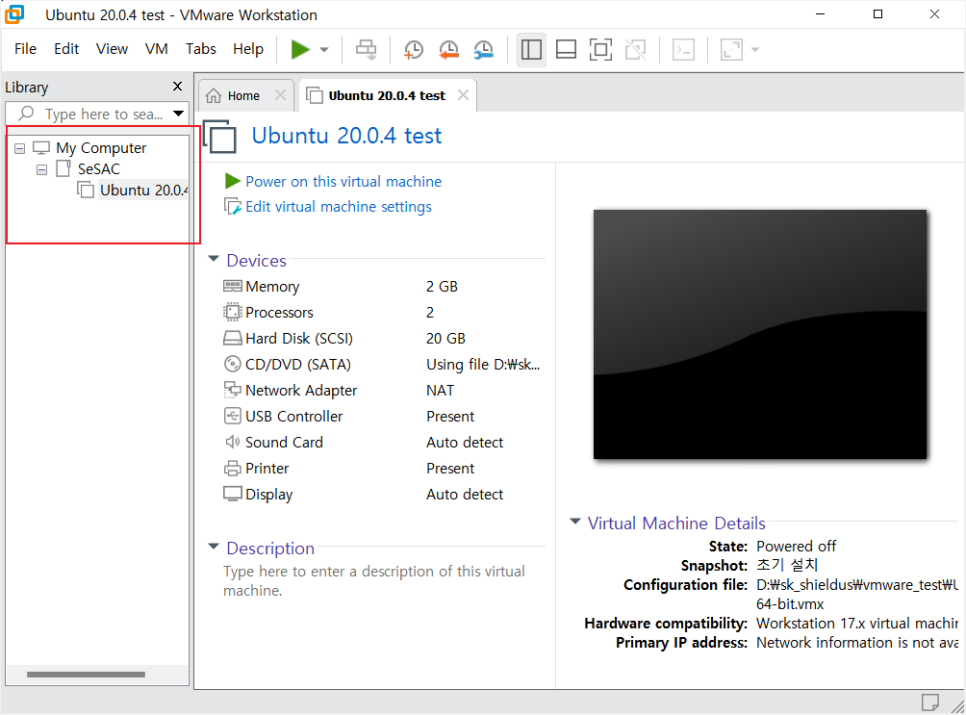
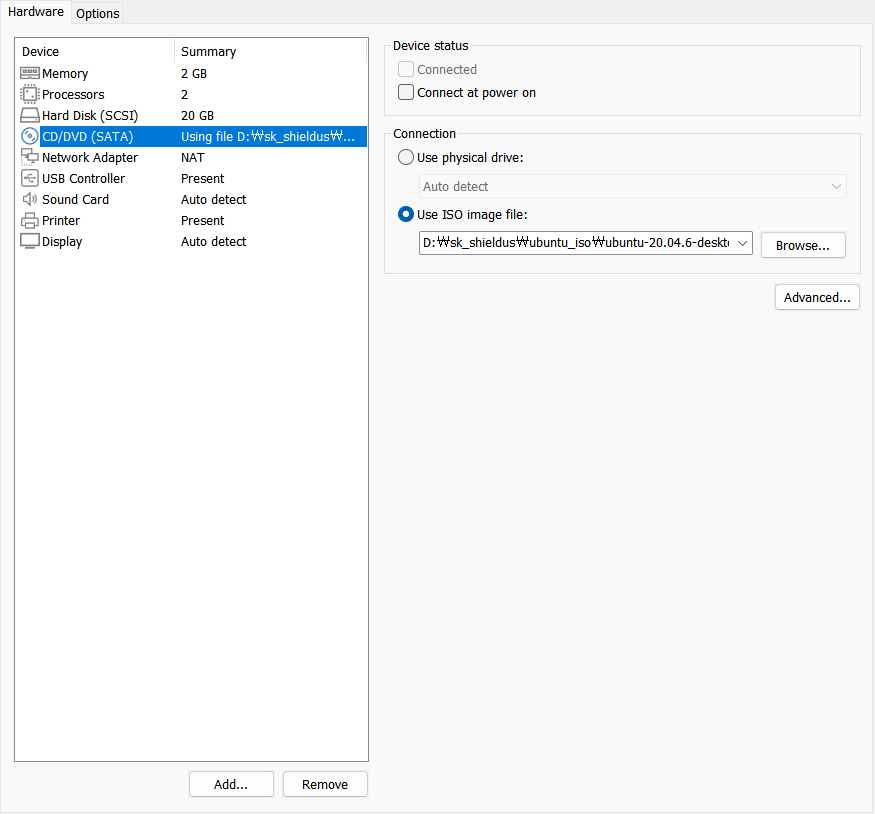
On the screen created in this way, you can see the virtual machine created in the left-hand My Computer section. Since we have set that the ubuntu iso file will be installed later, after right-clicking, go to the bottom Settings and attach the pre-downloaded ubuntu iso file to Use ISO image file.
Once you boot the virtual machine and install Linux, you can now use Linux. The installation process is done in Korean, so I won't attach it separately.
As mentioned earlier, using x-windows consumes a lot of memory and is unnecessary for console use, but I plan to use Linux as a terminal. Therefore, when booting, Linux must be set to run in console mode. First, run Linux in x-windows and enter the following commands in the following order:
sudo systemctl set-default multi-user.target (set the default boot mode to console mode)
※ Here, sudo is a request to perform an operation with administrator privileges, and systemctl is a system configuration command. set-default is a boot mode setting, and the multi-user option is related to the boot mode. You can think of multi-user.target as console mode.
sudo apt-get update (updates the list of packages available for use on Linux)
Console and terminal are different concepts. Console is a physical hardware form, while terminal is an environment that handles text input and output. Compared to console, terminal is more convenient to use Linux commands, and you can use Linux on a terminal through an SSH (protocol) server that facilitates remote access. This is because the terminal server makes it easy to view fonts and Korean, and it supports utf-8 by default.
Install the SSH server with sudo apt-get install openssh-server -y.
Just as you need a web browser to use a web service, you need a client to use an SSH server. The most commonly used client is putty, which can be downloaded from the link below. It is not difficult, so we recommend that you look up related articles.
Download PuTTY: latest release (0.79)
※ PuTTYSince you need to know the IP address of the guest OS when connecting remotely, ip addr Let’s use commands. By default, web browsers use port 80 as the default, and PuTTY uses port 22. Ports are like the numbers at airports – they act like plugs that connect to the outside world. In other words, they are numbers that identify programs, and depending on the port number, you can use different programs.
※ Windows ping There is a command that allows the use of a protocol that indicates whether the network is currently alive. It is used in the form of 'ping + address', and if there is no response, it means that the network is not alive or is blocked for security reasons. When a message is sent with the ping command, the server responds, which is a security reason to prevent the server from being taken down by a DDoS (an attack that attempts to take down a server by sending large amounts of internet traffic with the purpose of disrupting services).
IV. Linux commands
There are a lot of Linux commands, and there are many good resources in the form of tables that others have compiled. It's good to memorize those tables and use them, but I think it's better to learn them while using them than to try to do all of them at once. So, I'd like to share the basic commands I used in class. If you need them, you can find the related commands quickly, so please refer to them.
sudo init (0~6)
It is called the run level and is the command used during the boot process. Number 0 means system shutdown.
$ sudo shutdown -r(옵션)This command performs the same function as the above command. In the above command, '-r' can be used to specify when the command should be terminated, and if no time is specified, it will terminate after 60 seconds by default. There are also six commonly used numbers, including 6, which means reboot and restarts the system.
2. ln
You can install a program in Windows and create a shortcut to a specific executable file in Linux, just like a shortcut is placed on the desktop.
ln target(원본) name(바로가기)3. History
history (옵션 -c, -w)
history > /tmp/abc.log
Displays a list of previously used commands, and with the '-c' option, deletes the list. The '-w' option saves the current list to a file. In the second example, the list of commands is saved to a file named abc.log in the path /tmp.
4. cat
cat /경로/파일명This is a command that outputs file contents. You can specify a path and file name to retrieve specific file contents.
※ The directory where configuration information is stored on Linux is etcThat is.
※ The terminal accessed through PuTTY is the default browser sh You can change the shell (explorer) through commands, but the way it is displayed may vary depending on the shell's configuration. For example, the shell that appears immediately when running PuTTY shows the path to the current location, but it does not show it when changed to sh.
5. cd
cd /경로
cd -
cd ~id
It is commonly used as a command to move to a directory location, and if no path is specified, it returns to the /home/username directory. The current location at login is also the same. The second example returns to the previous directory. The third example returns to the user's home directory using the ID. If the ID is omitted, it returns to the home directory of the login account.
6. Is
ls
ls -al
ls -altr
Displays the files or directory list in the directory. '-al' is an option that lists all files (including hidden files and attributes). '-altr' displays the same list, but in reverse chronological order ('r') or in time order ('t').
※ When viewing the entire list with ls -al, if the very leftmost entry starts with 'd', it is a directory, and if it starts with '-', it is a file.
7. touch
touch 파일명Creates a new file with a size of 0 and changes the modification time if a file with the same name already exists. For security reasons, this command can also be used to create a file in advance, preventing access and preventing the file from being created.
※ From the options 'r'If this is included, the directory-related repetition may have the opposite meaning. 'a'means the whole, 'f'means a file or a forced file. 'n'It mostly has to do with numbers.
※ Linux does not have the concept of extensions, unlike Windows. Reverse tunneling The attack method involves uploading a program to the server it is trying to hack, by tricking the administrator (pretending to be a normal file). This creates a backdoor that can be accessed from the outside. Since firewalls place almost no restrictions on outgoing traffic, the client can connect to the server and send data out, and Linux has no concept of file extensions, so it is easy to trick.
8. file
file /경로/파일명With regard to the Linux tips mentioned above, there is no concept of file extensions, but this command is the way to determine what type of file it is.
※ Linux cannot create a folder with the same name as a file, and it distinguishes between upper and lower case letters.
9. head, tail
head /경로/파일명
tail /경로/파일명
head, tail -n 15 /경로/파일명
When you use the cat command to read the contents of a file, it loads the entire file, which can take a long time for large files. Therefore, the commands that show part of the file are head and tail. head reads from the front, and tail reads from the back. If you specify a number with the '-n' option, it will read that many lines, which is set to 10 by default.
※ For executable files on Linux, there are foreground and background. Foreground is the state in which the file is executed as visible to us, while background is not visible but is running in the background. '-f'And '-daemon(-d)'can be specified as an option.
10. cp
cp 어떤 파일/디렉토리로부터 어디에The cp command copies files and directories.
11. rm
rm -rf ./경로The rm command deletes files and directories, and the '-rf' option deletes them forcibly. You can specify files to delete, or delete all subdirectories.
12. ifconfig
sudo apt-get install net-tools

ifconfig
ifconfig 인터페이스명 up/down
Although some Linux distributions allow network-related commands to be used without installing packages, Ubuntu requires package installation. The ifconfig command displays information about network interfaces. RX and TX packets indicate incoming and outgoing packets. The ether information is the unique identifier (MAC) of the network interface. The up/down option allows the interface to be turned on and off.
Reviews
Once Python was finished, the class moved on to Linux and networking, and I experienced commands through the installation of Linux and Ubuntu using a virtual machine. Since this is a part I have never learned before, I was more focused than usual and had to learn a lot of things, so I didn’t remember everything, but I wrote a blog post while reviewing the concepts that were covered in class. Since the concepts are not yet clear, there may be some mistakes, so if you let me know about those, I would appreciate it. 👋